Before creating a work shift, it is essential to ensure that the basic components are properly configured, namely tasks, groups, locals, and places.
You can consult the articles associated with each of these features to learn how to configure them:

How to create and customize tasks?


How to create ''Locals/Places''?
Once these elements are in place, you will be able to create personalized work shifts, assign employees, and configure the periods according to your needs. Here's how to proceed:

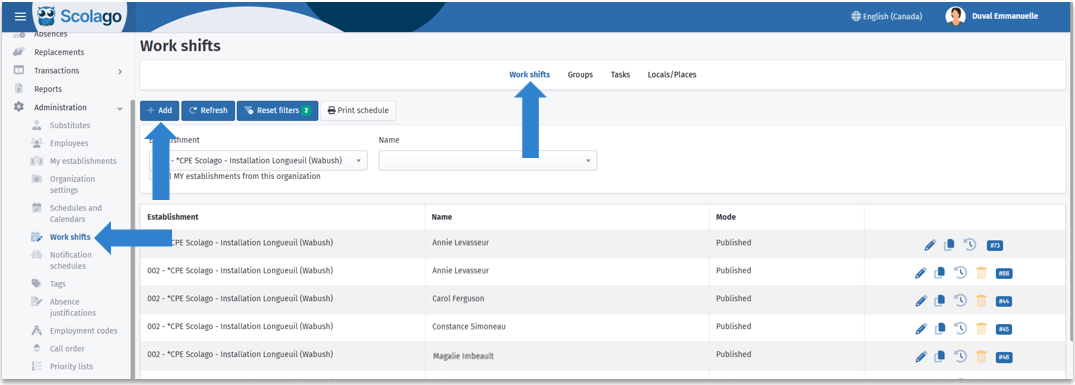
From the Administration menu, access the Work Shifts module, in the Work Shifts tab, and click the Add button.

Fill in the required fields.
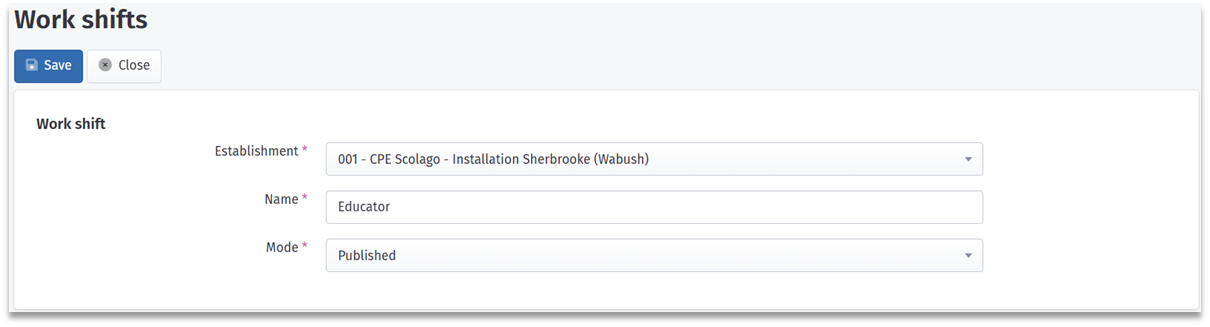
- Establishment: by default, the establishment is already selected. However, you can change it using the dropdown menu;
- Name: enter the name you want to give to the shift;
- Mode: choose between the following two options:
- Draft: useful for preparing schedules without publishing them immediately;
- Published : the shift will be visible to the assigned employees;
Then click on Save. Once the work shift is saved, a new section named Periods will appear

Once the work shift is saved, a new section named Periods will appear.
Add one or more periods, then:
- Select the configuration week;
- Click the Add button;
- Select the name of the employee, if desired;
- Set the start date and time as well as the end date and time for the shift;
- Define the task, group, and local/placefor this period using the various drop-down menus;
- Repeat as necessary.
If the parameter Allow weekend absences is not activated, weekend days will appear in grey and cannot be selected.
 You can refer to the article on absence planning for more information: All - How does the ''Absence planning'' module work?
Four additional buttons can be used to facilitate work shift planning: | |
  | Allow you to duplicate the entire week of a work shift to another, or duplicate a day to other days of the same week . You can learn more about these options by consulting the article on shift duplication: How to use duplication in the ''Work Shifts'' module? You can learn more about these options by consulting the article on shift duplication: How to use duplication in the ''Work Shifts'' module? |
 | Allows you to modify the employee assigned to a period. |
 | Offers an overview of the work shift for the selected week, which makes it easier to validate assignments and schedules. |

Once all periods are configured in Draft mode, click Save. If you are in the Published mode, you have two saving options:
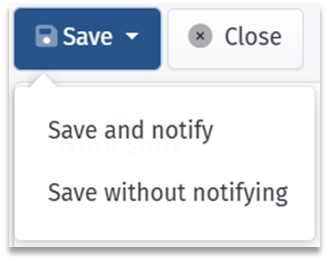
Save and notify: assigned employees will receive a notification informing them of their work shift.
Save without notifying: the shift is published in the employee's Home module, but employees will not receive a notification.

If you'd like, you can print the schedule. Find the Print schedule button in the Works shifts module. On the page that opens, select your desired dates and display options.
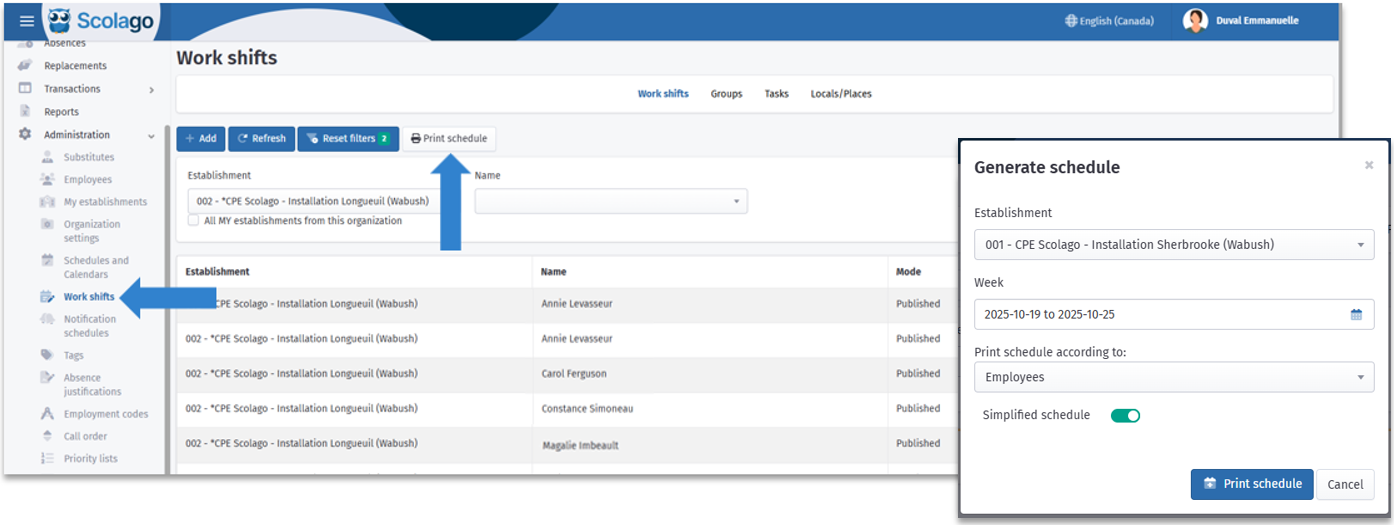

If needed, watch this video to see the procedure explained above: Video: How to create a work shift?.
Was this article helpful?
That’s Great!
Thank you for your feedback
Sorry! We couldn't be helpful
Thank you for your feedback
Feedback sent
We appreciate your effort and will try to fix the article