The Agenda module is the central tool for visualizing everything happening in an organization in terms of work shifts, absences, and replacements. It allows managers to see, at a glance, the real and up-to-date planning of personnel, whether for one establishment or the entire organization.
With this module, you can:
Track the evolution of planned and assigned work shifts ;
Spot absences and replacements in real time;
Easily identify overlaps or unfilled periods;
Directly access the details of each period and intervene if needed (modification, reassignment, duplication, etc.).
 Navigating the Agenda module Navigating the Agenda module |
Access the Agenda module via the menu on the left. Two tabs are available in this section:
Agenda: a view centered on employees, allowing you to consult absences, replacements, and work shifts associated with each.
Work shifts: a view centered on establishments and groups, useful for viewing schedules and distributions by group.
You can switch from one tab to the other depending on the information you’re looking for.

 Agenda tab Agenda tab |
In the Agenda tab, a calendar displays the list of employees and replacements on the left, and the different time periods of the day on the horizontal axis. You’ll see everything that’s planned: absences, replacements, and work shifts.

Each colored block in the agenda represents an event. By clicking on a period, you can view the details of the request (absence, replacement, or work shift). The table is also horizontally scrollable, allowing you to view all periods of the day by scrolling left or right.
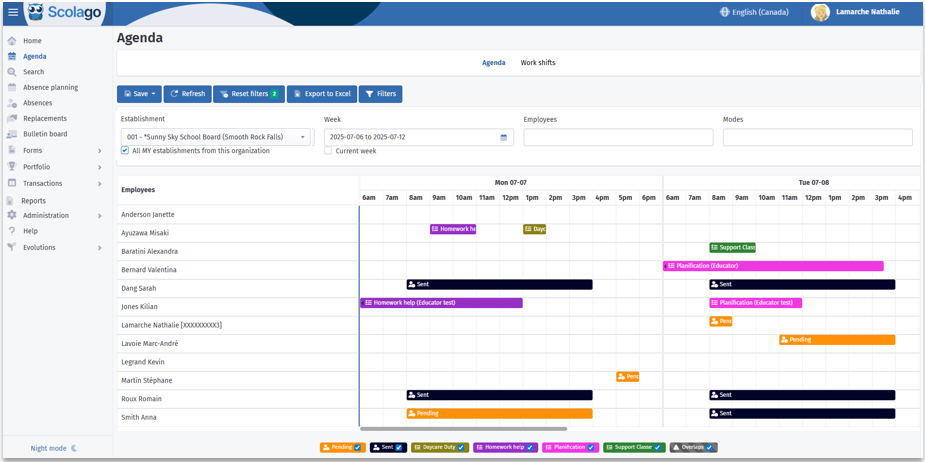

A bar located at the bottom of the screen allows you to filter the display using checkboxes associated with statuses (e.g.: Pending, Accepted, Supervision, etc.). This lets you easily control the elements you want to view. You can also enable or disable the display of overlaps to quickly identify periods where multiple requests overlap.
You can adjust the display using the following filters:

- Establishment: select your establishment using the dropdown menu;
- Week: by default, the current week is displayed;
- Employees: filter by employee name;
- Modes: choose to display draft or published work shifts.
Four buttons are also available to facilitate navigation:

Refresh: reloads data after a filter change;
Reset filters: restores the default display;
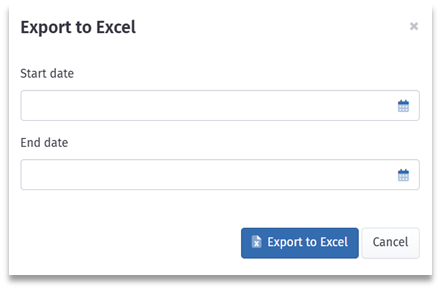
Export to Excel: generates a detailed report. Before exporting, you must indicate a start and end date for the report, then click on Export to Excel. This report is also available from the Work Shifts tab in the module.
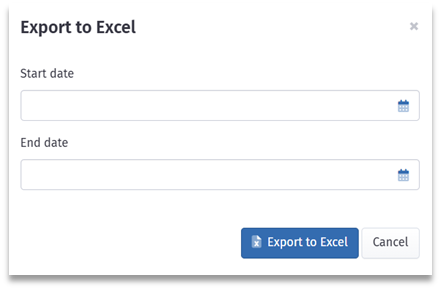

For more information about the generated report, please consult this article: The ''Work shifts'' report in the ''Agenda'' module
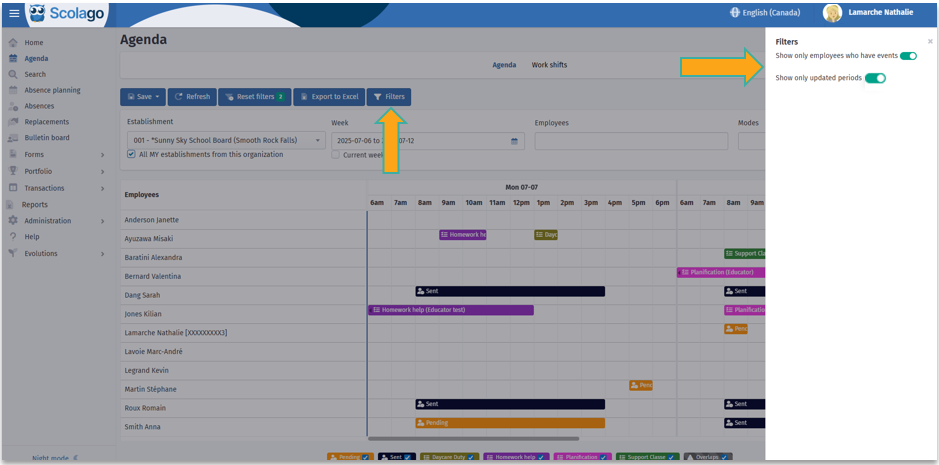
- Filters: By clicking this button, you can filter to display only the rows containing events for employees by activating the switch Show only employees with events. Thus, you can view only recent period modifications by activating the toggle Show only updated periods.
The Agenda tab also allows you to reassign a task to another employee or educator using the drag-and-drop functionality. This operation allows you to change the person assigned to an event, but not the time of the event.
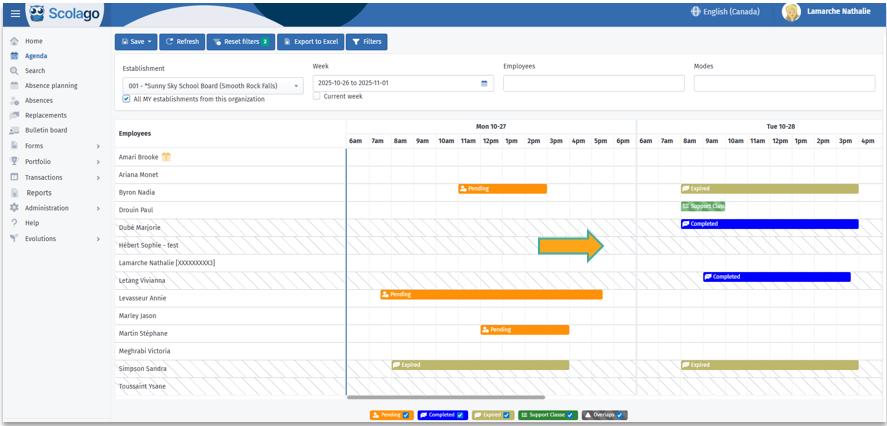
- If the targeted employee is not available for that period, the corresponding area appears hatched and the operation won't be possible;
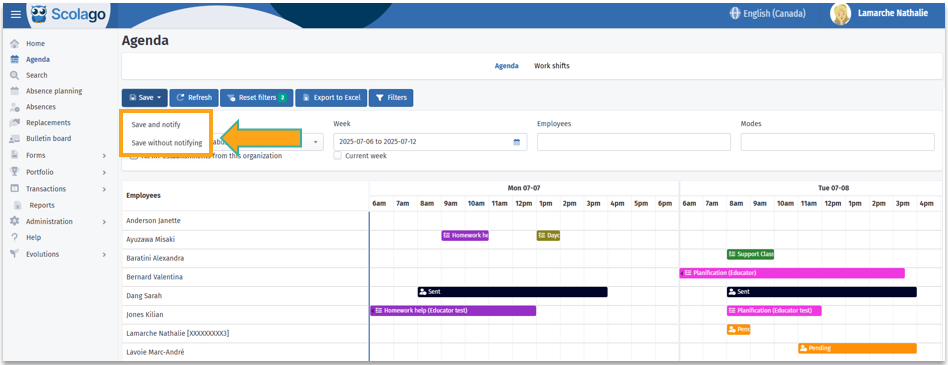
- After moving an event, you can click Save to confirm the modification. You can then choose to inform the targeted employees by clicking Save and notify, or to save without notifying.
 Work shifts tab Work shifts tab |
In the Work shifts tab, a calendar displays the selected establishments, the associated groups, and the types of assigned work shifts. Unlike the Agenda tab, this view is exclusively dedicated to consulting work shifts. On the horizontal axis, the hours of the day are shown according to the selected week. Each colored block (e.g.: Supervision) corresponds to a planned work shift. By clicking on a block, you can access the details of the shift and perform actions such as modification or reassignment.
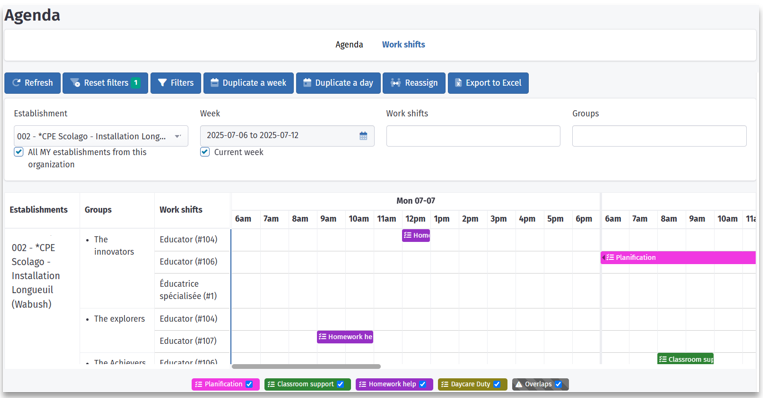

A bar located at the bottom of the screen allows you to filter the display using checkboxes associated with the shifts. This lets you easily control the elements you want to view. You can also enable or disable the display of overlaps to quickly identify periods where multiple shifts overlap within the same group or establishment.
Just like in the Agenda tab, you can customize the display using the filters at the top of the screen:

- Establishment: select an establishment;
- Week : by default, the current week is displayed, choose the period you wish to consult ;
- Work shifts : filter by type of shift;
- Groups : filter by group name.
The following buttons allow you to interact with the interface:

- Refresh : reloads the page;
- Reset filters : restores default filters;
- Filters : use the Filters button to choose to display work shifts in draft or published mode;
- Duplicate a week : allows you to copy the schedule of an entire week to another. You can enable the Notify employees switch, then click on Duplicate or Duplicate and overwrite;
- Duplicate a day : allows you to copy the schedule of one day to another. As with the week, you can enable the Notify employees switch and choose between Duplicate or Duplicate and overwrite.

For more information about daily duplication, please consult this article: How to use duplication in the ''Work shifts'' module?
- Reassign : allows you to change the assignment of an existing work shift.

For full details and tips on reassignment, you can consult this article: How to reassign a work shift?
- Export to Excel : generates a file containing all the work shifts displayed on screen. Before exporting, you must define a date range, then click on Export to Excel to generate the report. This report is also available from the Agenda tab in the module

For more details about this report, please consult the following article: The ''Work shifts'' report in the ''Agenda'' module

If you wish, click on the following link to watch the explanatory video about this module: Video: Overview of the ''Agenda'' module.
Was this article helpful?
That’s Great!
Thank you for your feedback
Sorry! We couldn't be helpful
Thank you for your feedback
Feedback sent
We appreciate your effort and will try to fix the article