Depending on the configuration chosen, some organizations can enable the setting that enforces the use of two-factor authentication for their employees' account login. When this setting is enabled, two-factor authentication (2FA) becomes mandatory for the affected users, who will need to set it up before they can access the platform.
 | If you have a Scolago account and none of your organizations enforce two-factor authentication, you can still set it up yourself to keep your account secure. To do so, please refer to the following article: All - How does two-factor authentication work? |
If your organization requires 2FA, you will automatically be prompted to set it up the next time you log in to Scolago, before you can navigate the platform. This step cannot be skipped or postponed: the setup must be completed in order to continue.
Here's how the setup process works:

Log in to your Scolago account as usual, using your email address and password, or through secure SSO login.
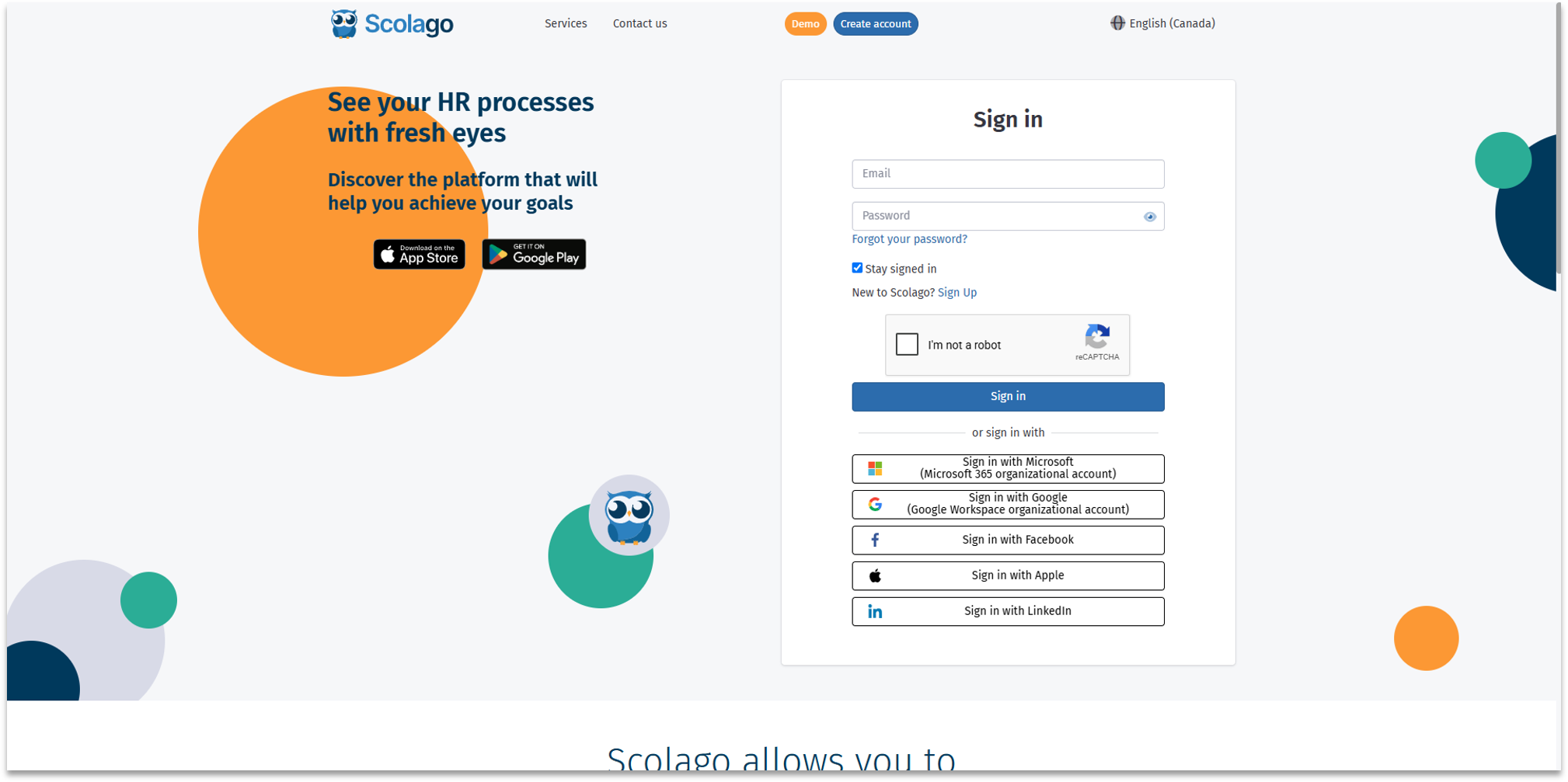

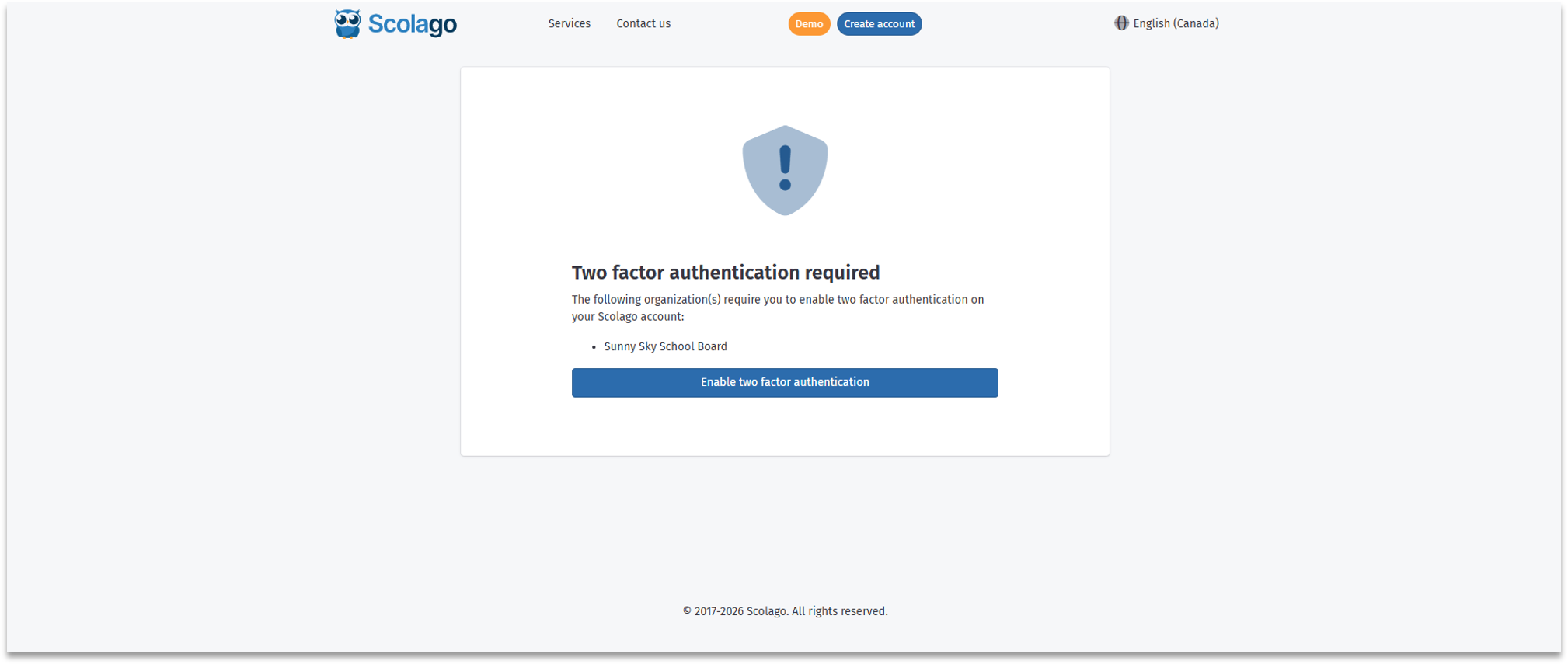
The two-factor authentication setup page will automatically appear.
It will show you which of your organizations requires two-factor authentication. Click the Enable two-factor authentication button.

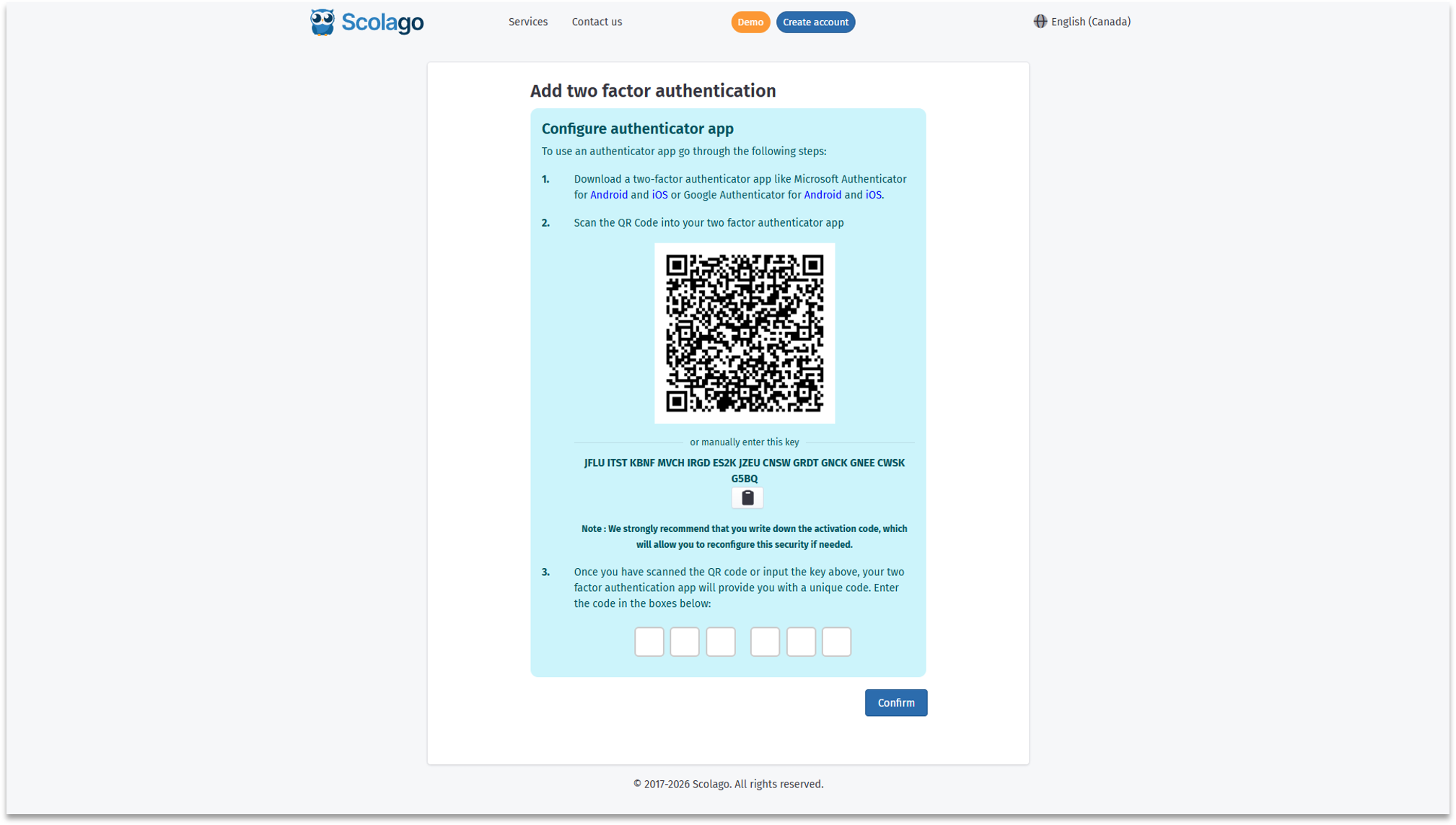
Download a compatible authentication app on your phone, if you haven't already done so.
Both Microsoft Authenticator and Google Authenticator, available on Android and iOS, are compatible.

 | We recommend limiting yourselves to the suggested applications, as they are entirely free, require no subscription or account creation, are maintained by major providers, and are the only ones our guides and technical support are designed for. |

Open the downloaded app and scan the QR code displayed on the screen.
If you prefer, or if you're using your phone to complete the setup, you can also manually enter the provided key.

Once the QR code has been scanned or the key entered manually, the app will create an entry named Scolago with your email address underneath.
Click on it, and the app will generate a unique code that refreshes every 30 seconds.
| View on Android : |  |
| View on IPhone : |  |
Enter this code in the fields provided on the setup page, then confirm.
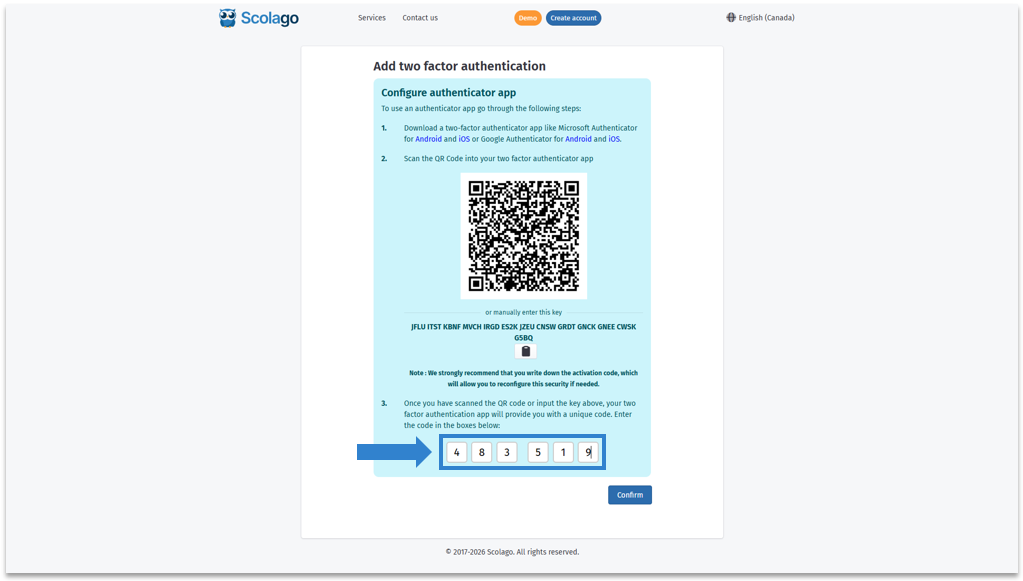
| |||||||




Once the setup is confirmed, you will automatically be redirected to the platform.
At the bottom of the Settings tab in your profile, you will not be able to remove two-factor authentication. A message will inform you which organizations require this setup.
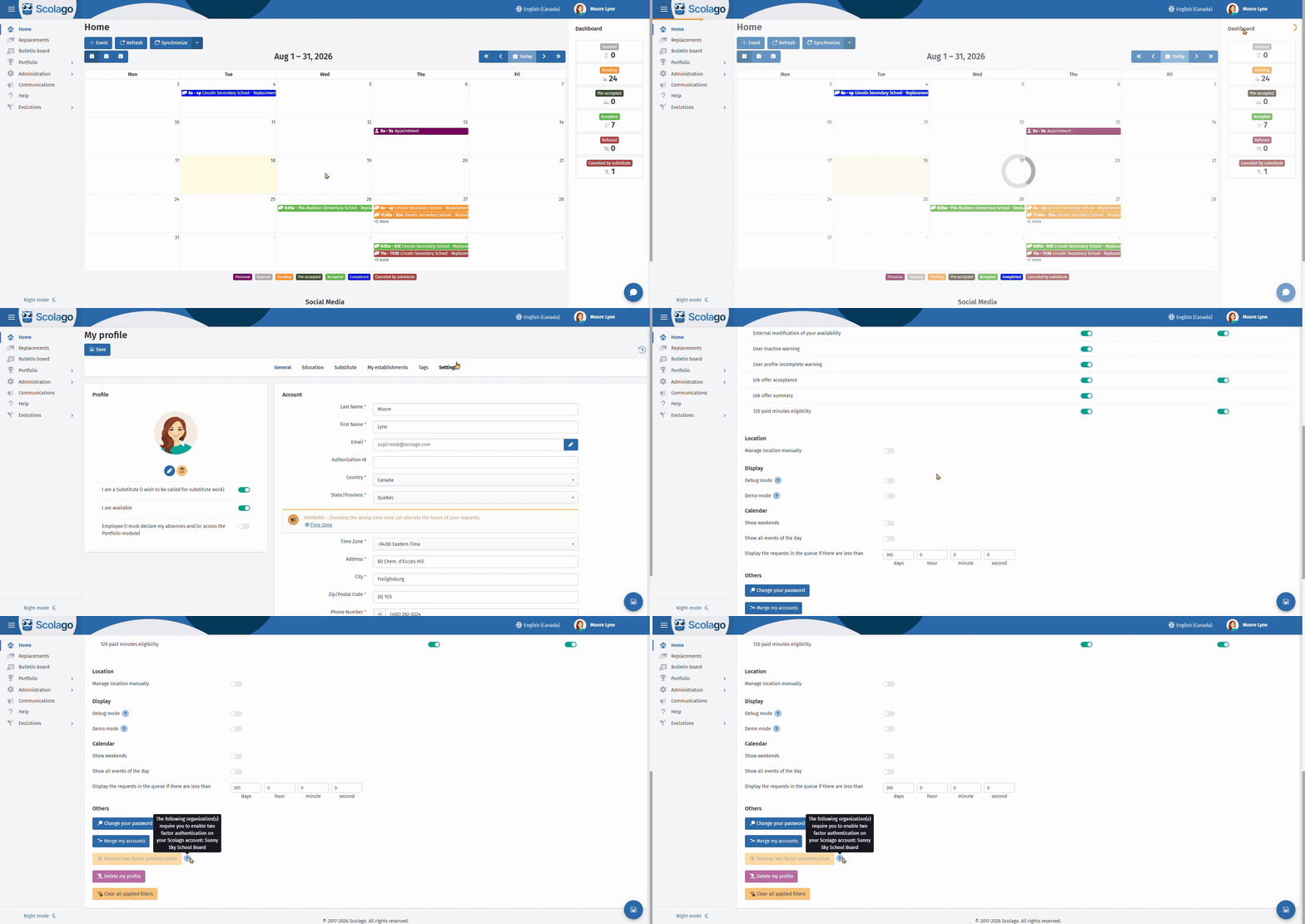
This way, at each login, you will need to enter a code from the app you downloaded earlier.
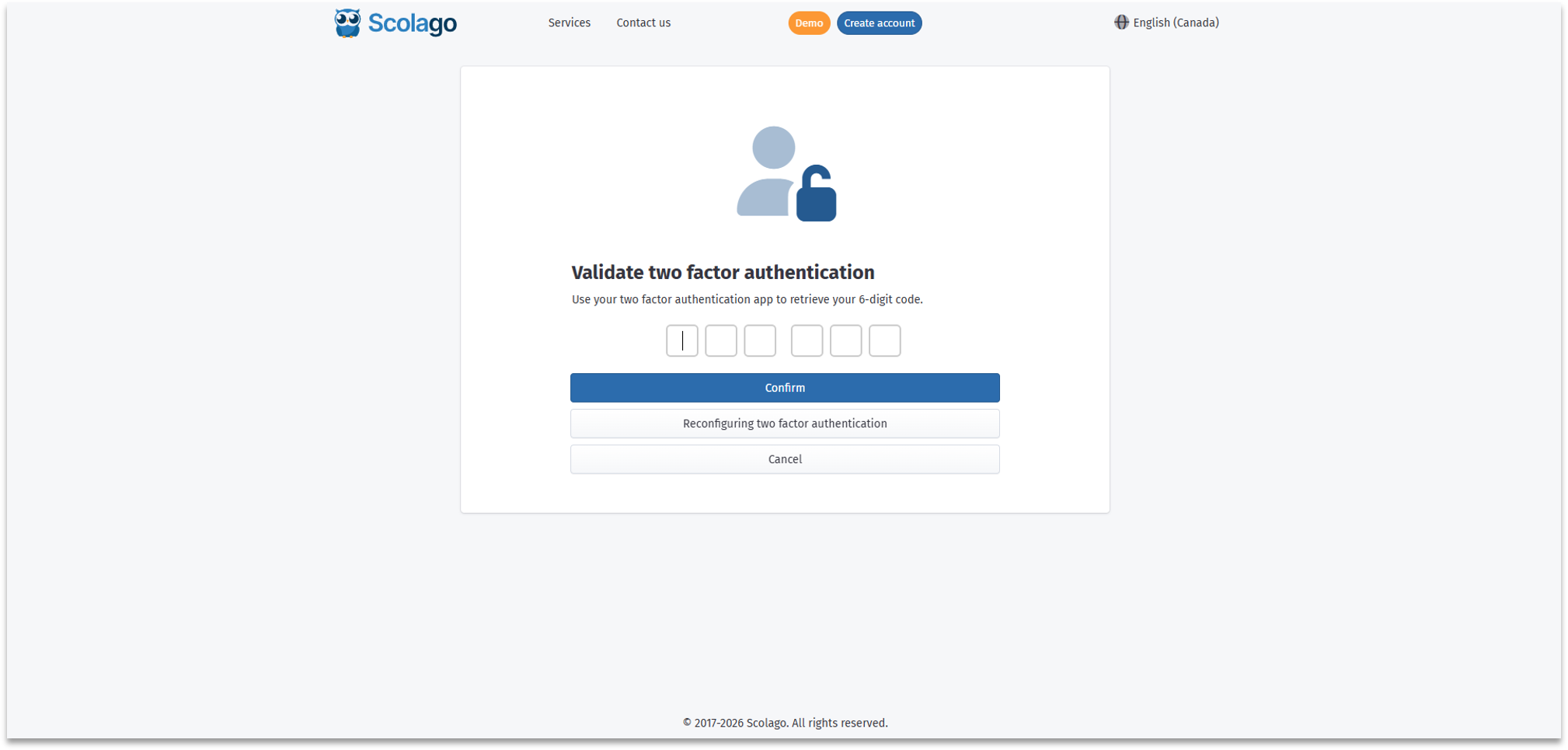
 | If you have already set up two-factor authentication but no longer have access to the app that generates your code (for example, if you changed phones), please refer to the following article to reconfigure your access: All - I can't use my two-factor authentication app at the moment.. |
Was this article helpful?
That’s Great!
Thank you for your feedback
Sorry! We couldn't be helpful
Thank you for your feedback
Feedback sent
We appreciate your effort and will try to fix the article