Two-factor authentication (2FA) is an enhanced security method that helps protect your online accounts against unauthorized access. In addition to your password, you will need to provide a second factor in the form of a code generated by an authenticator app.
This way, even if someone manages to obtain your password, they will not be able to access your account without the code generated by the authenticator app. This protects your personal information and reduces the risk of data theft.
 | The setup process differs slightly if two-factor authentication is mandatory in your organization. If so, please refer to the following article: All - How do I set up the two-factor authentication required by my organization? |
 | If you have already implemented two-factor authentication but are unable to use the app that provides the security code, please consult this article instead: All - I can't use my two-factor authentication app at the moment. |
Here's how to set it up:

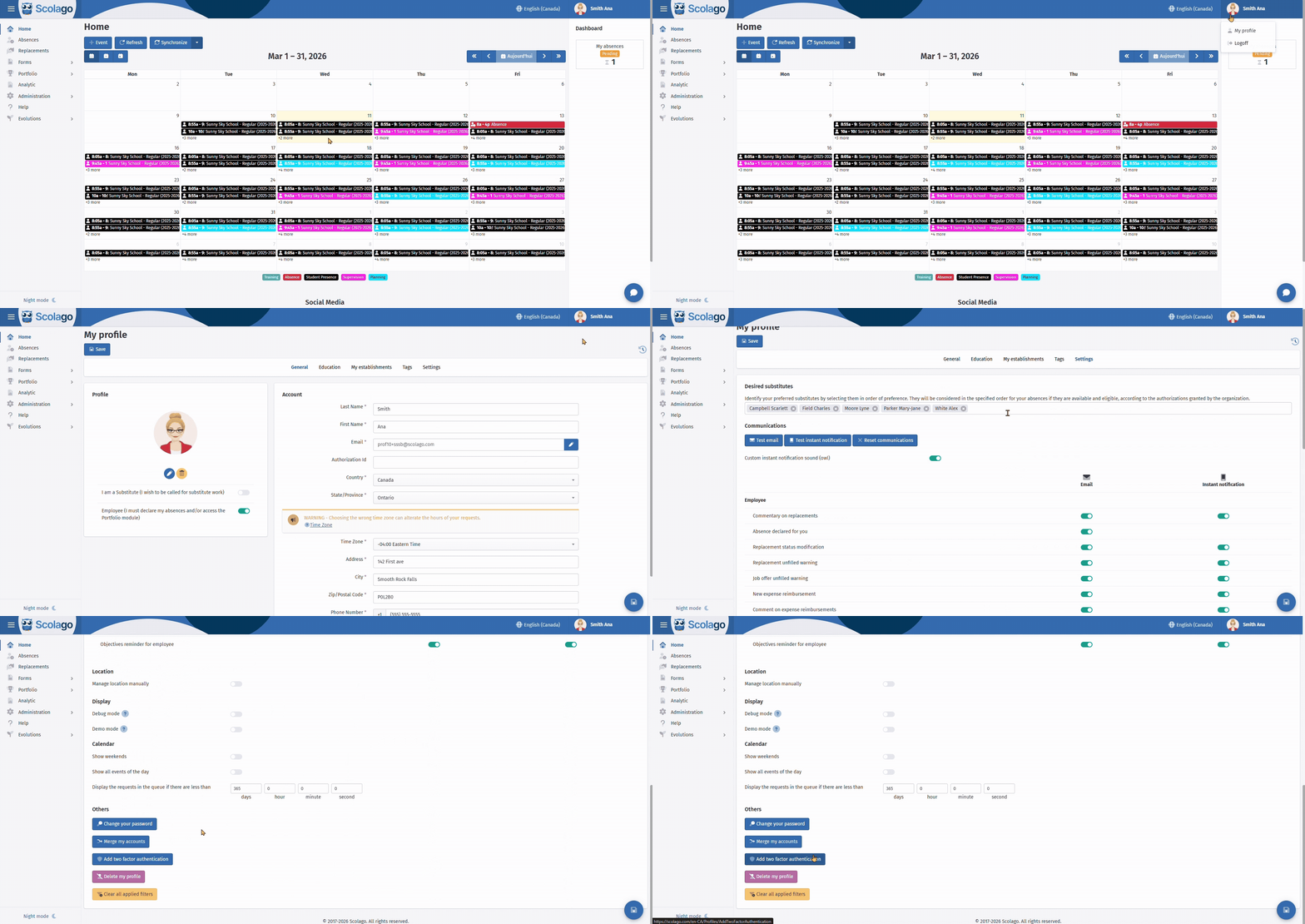
Access your profile. In the Settings tab of your profile, scroll to the bottom of the page and click Add two-factor authentication to start the setup.

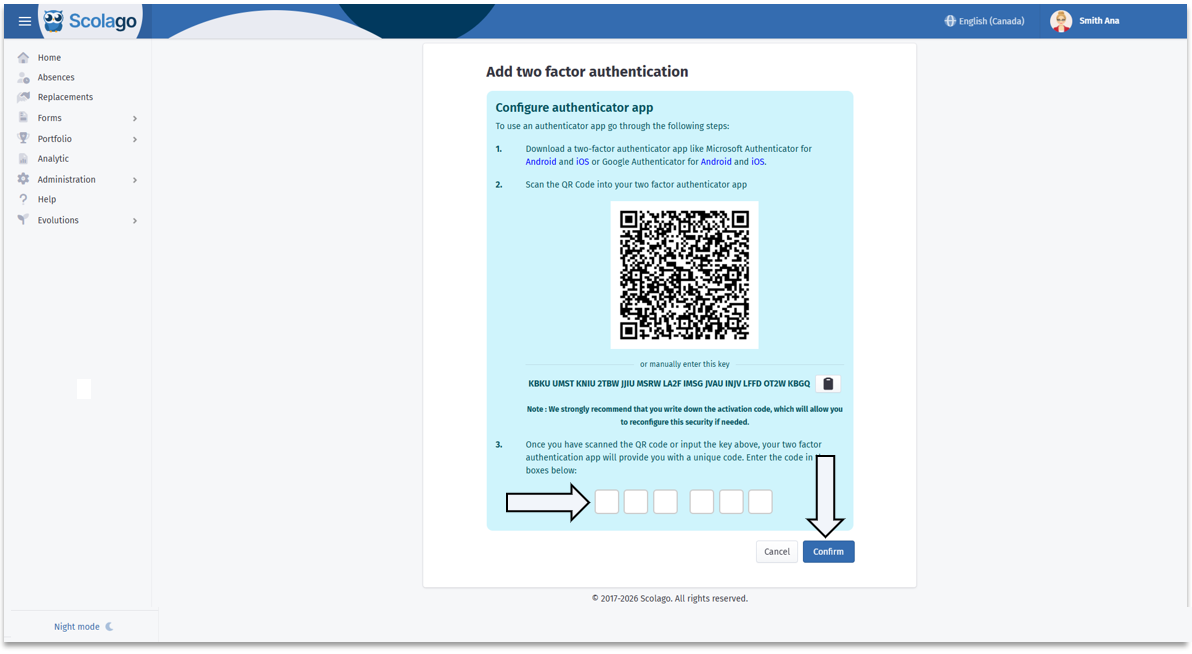
To enable two-factor authentication, you then need to download a compatible authentication app.
You can use apps like Microsoft Authenticator or Google Authenticator, available on both Android and iOS.

 | We recommend limiting yourselves to the suggested applications, as they are entirely free, require no subscription or account creation, are maintained by major providers, and are the only ones our guides and technical support are designed for. |

We strongly recommend that you note down the activation code provided during this step. This code will be essential if you need to reconfigure two-factor authentication in the future.

After scanning the QR code or entering the key manually, the authentication app will generate a unique code.
| View on Android: |  |
| View on IPhone: |  |
Enter this code in the corresponding fields on your profile page, then confirm.

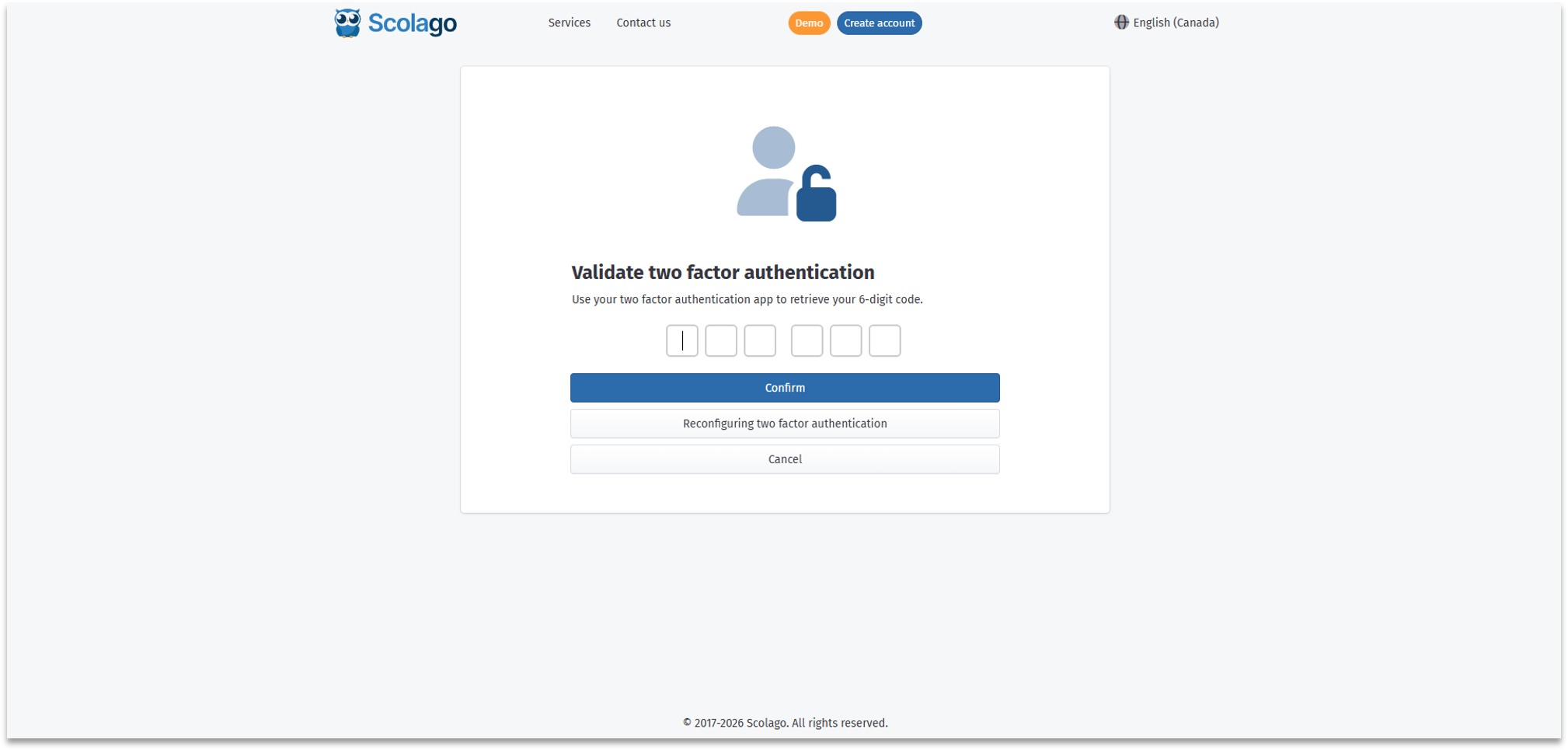
If you get an error message even though you entered the code shown in the app correctly, the issue may be caused by the time setting on your mobile phone.
To fix this, we recommend enabling automatic date and time in your phone's settings. If needed, refer to the Android or Apple help pages, depending on your device:
 | If you can't change the time or time zone on your Apple device |
Once you have adjusted your phone's time, go back to the authenticator app and try logging in again with the new code.

Once the setup is confirmed, you will need to enter a code from your authenticator app each time you log in.
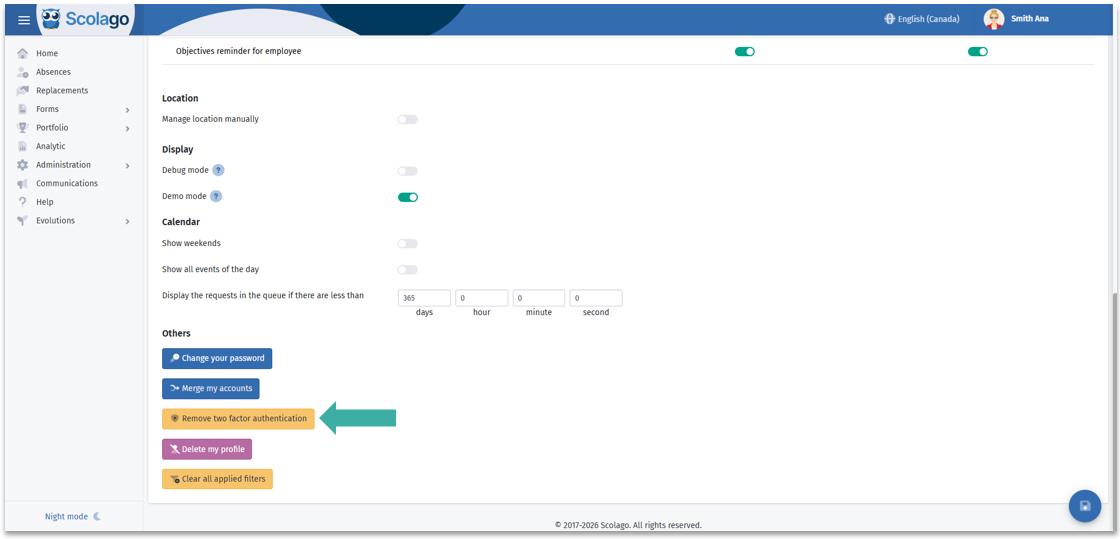
If you want to remove two-factor authentication, go to the Settings tab of your profile. Then, click the Remove two-factor authentication button at the bottom of the page.
 | To add two-factor authentication to your account, please watch this video: Video: All - How to add two-factor authentication? |
 | For even more security, you can configure an SSO connection by pairing your Scolago account with Microsoft, Google, or other providers. For more details, consult the following article: All - How does the secure login (SSO) work?. |
Was this article helpful?
That’s Great!
Thank you for your feedback
Sorry! We couldn't be helpful
Thank you for your feedback
Feedback sent
We appreciate your effort and will try to fix the article