A security key is a small physical device that you plug into a USB port or hold near an NFC reader. Once set up, it replaces the code generated by an authenticator app: after entering your password, simply touch your key to confirm your identity.
This method is especially secure, since no one can access your Scolago account without having the physical key in hand.
 | Caution, please note that some mobile devices do not support security keys in the Scolago mobile app. |
Follow these steps to set up this type of two-factor authentication:

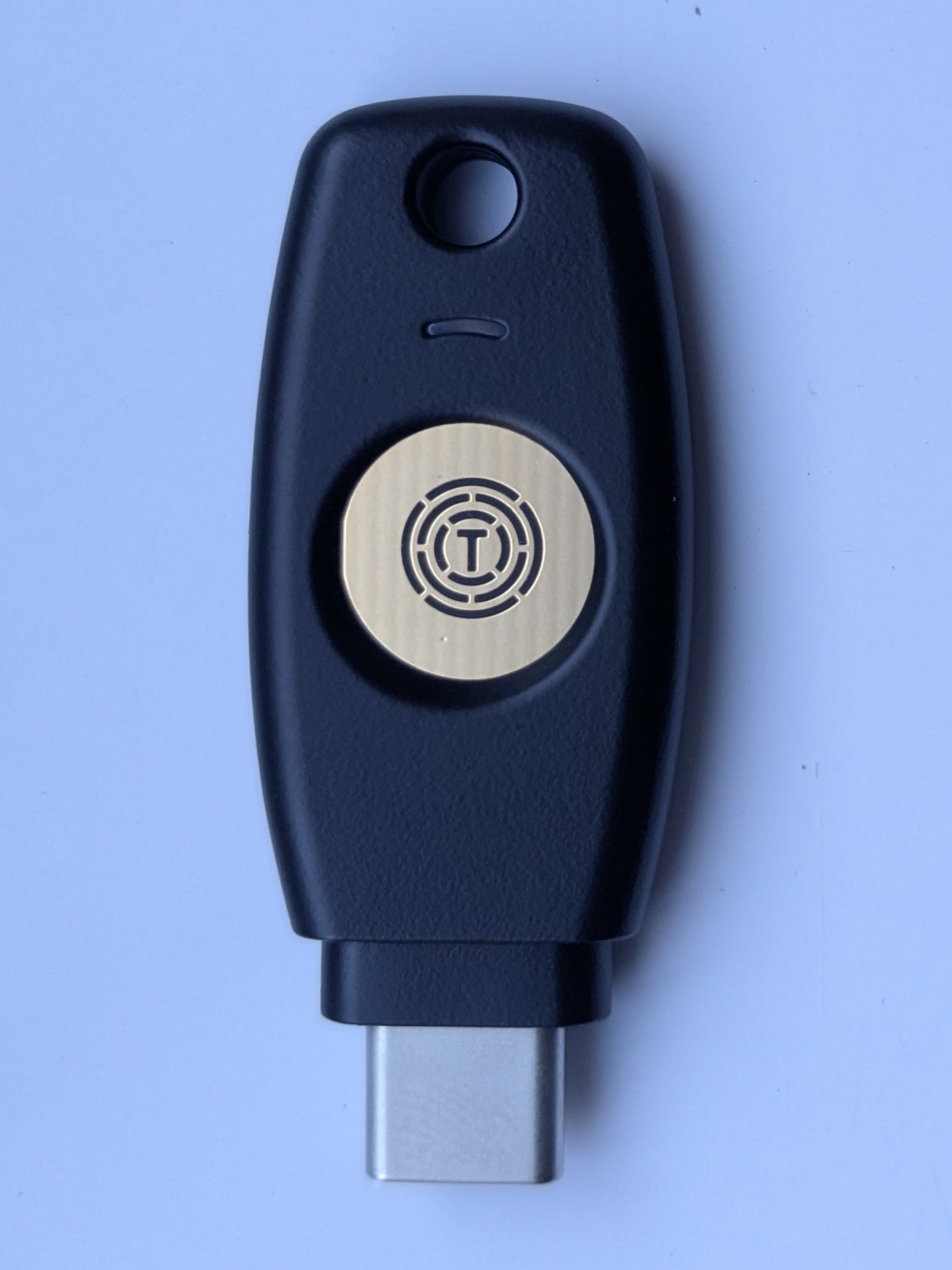
Make sure you have a physical security key that supports WebAuthn/FIDO2. If your IT department provided your key, it is usually this type of key.
It might look like this:

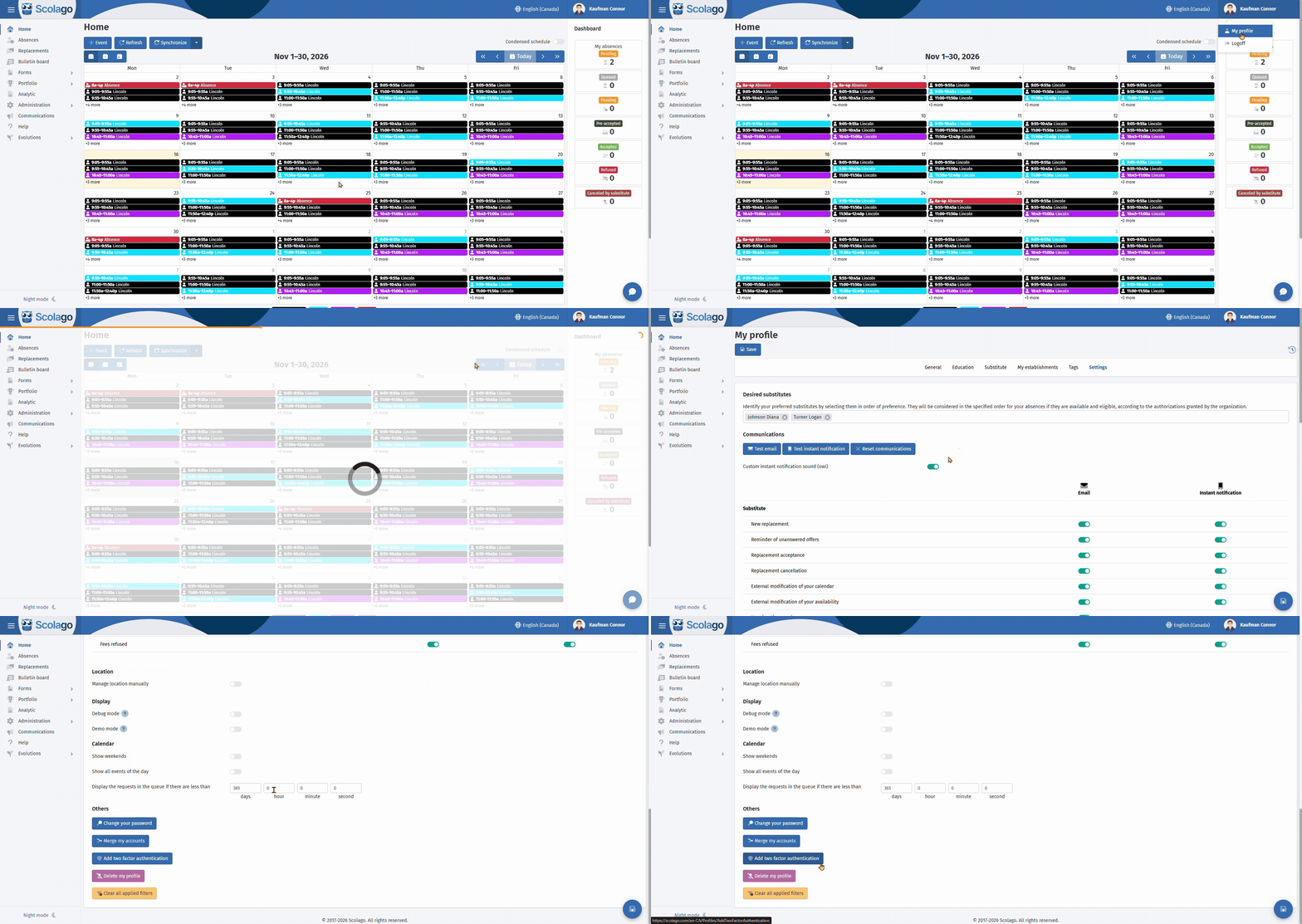
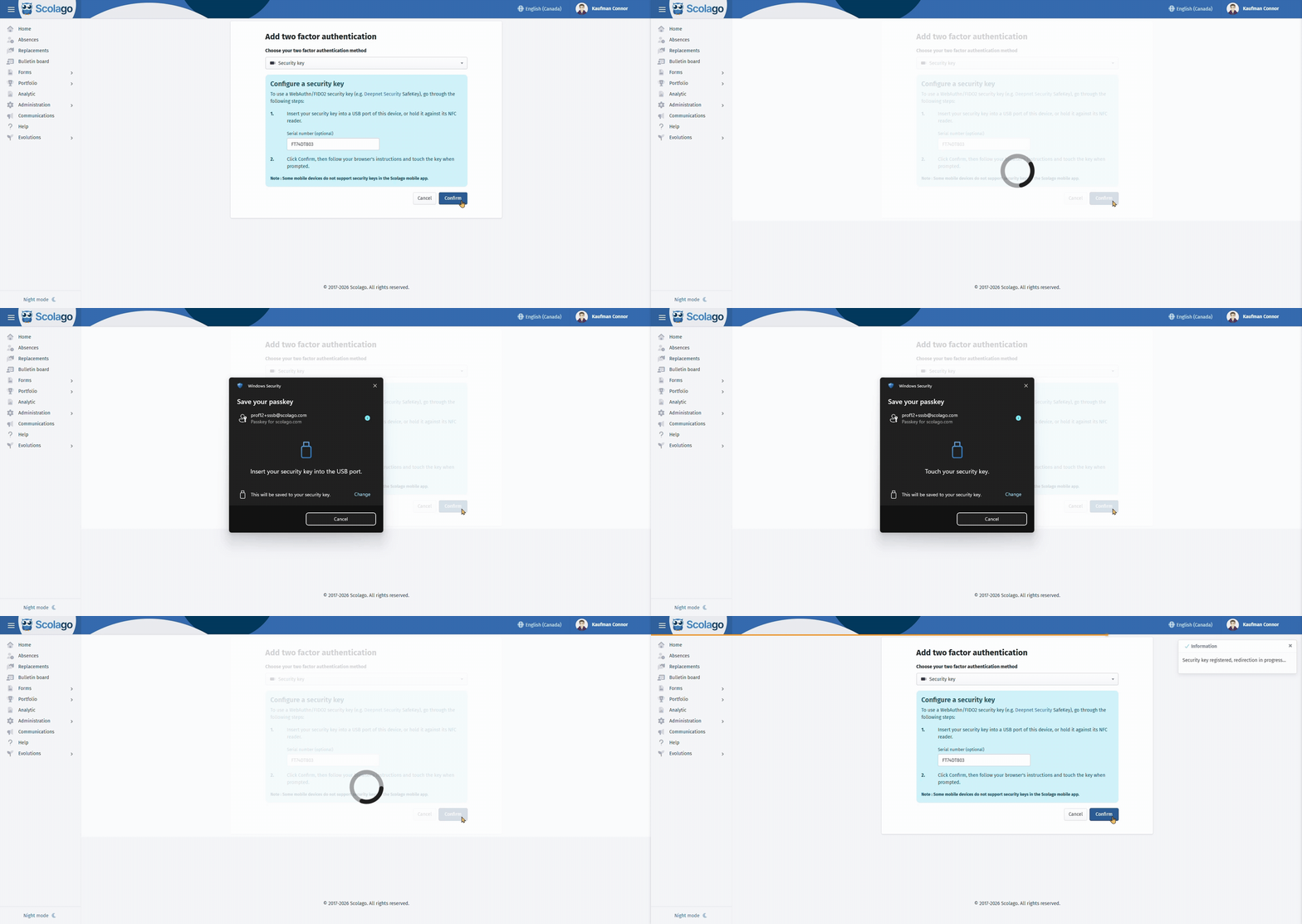
In Scolago, go to your profile. In the Settings tab, scroll to the bottom of the page and click Add two factor authentication.

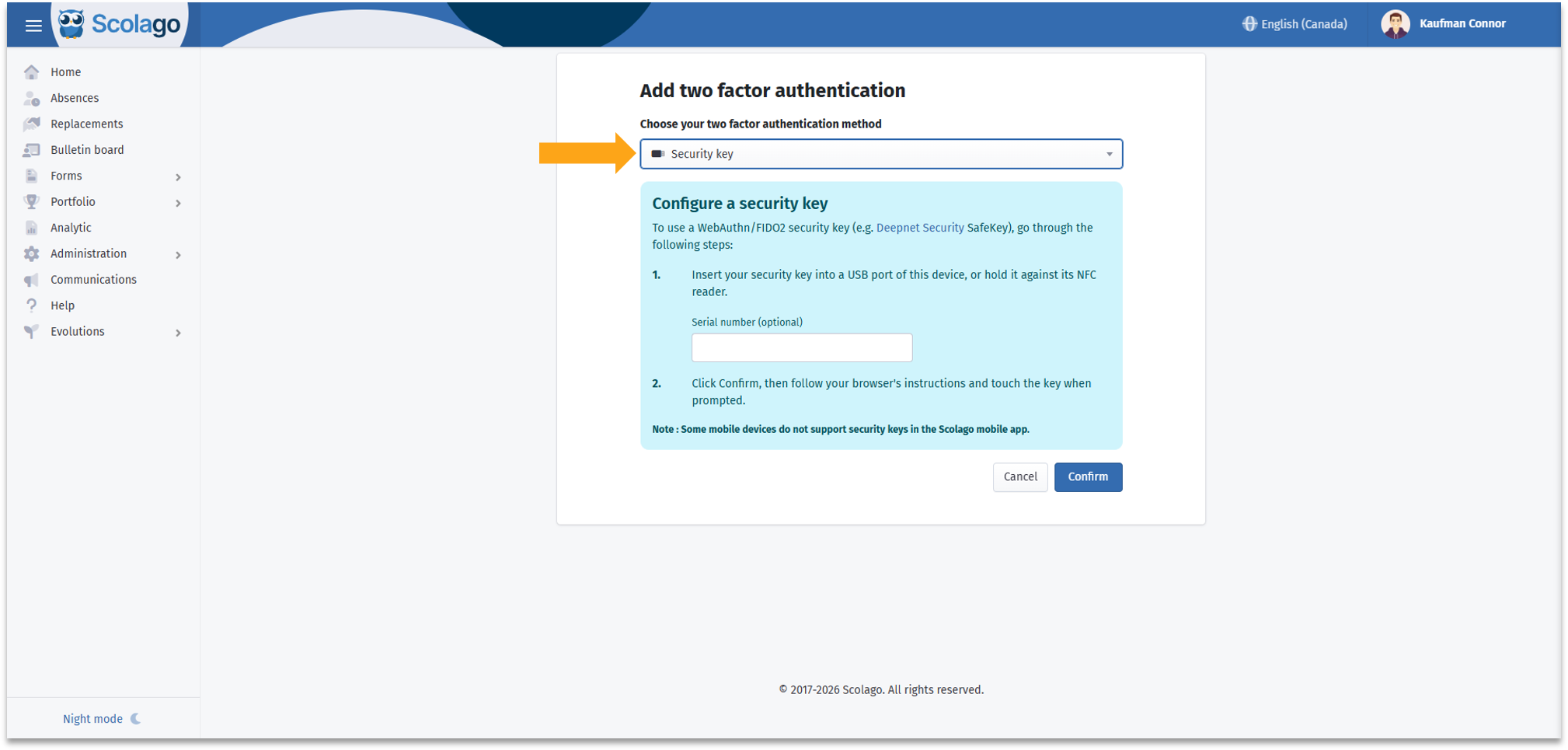
At the top of the page, under Choose your two factor authentication method, select Security key.

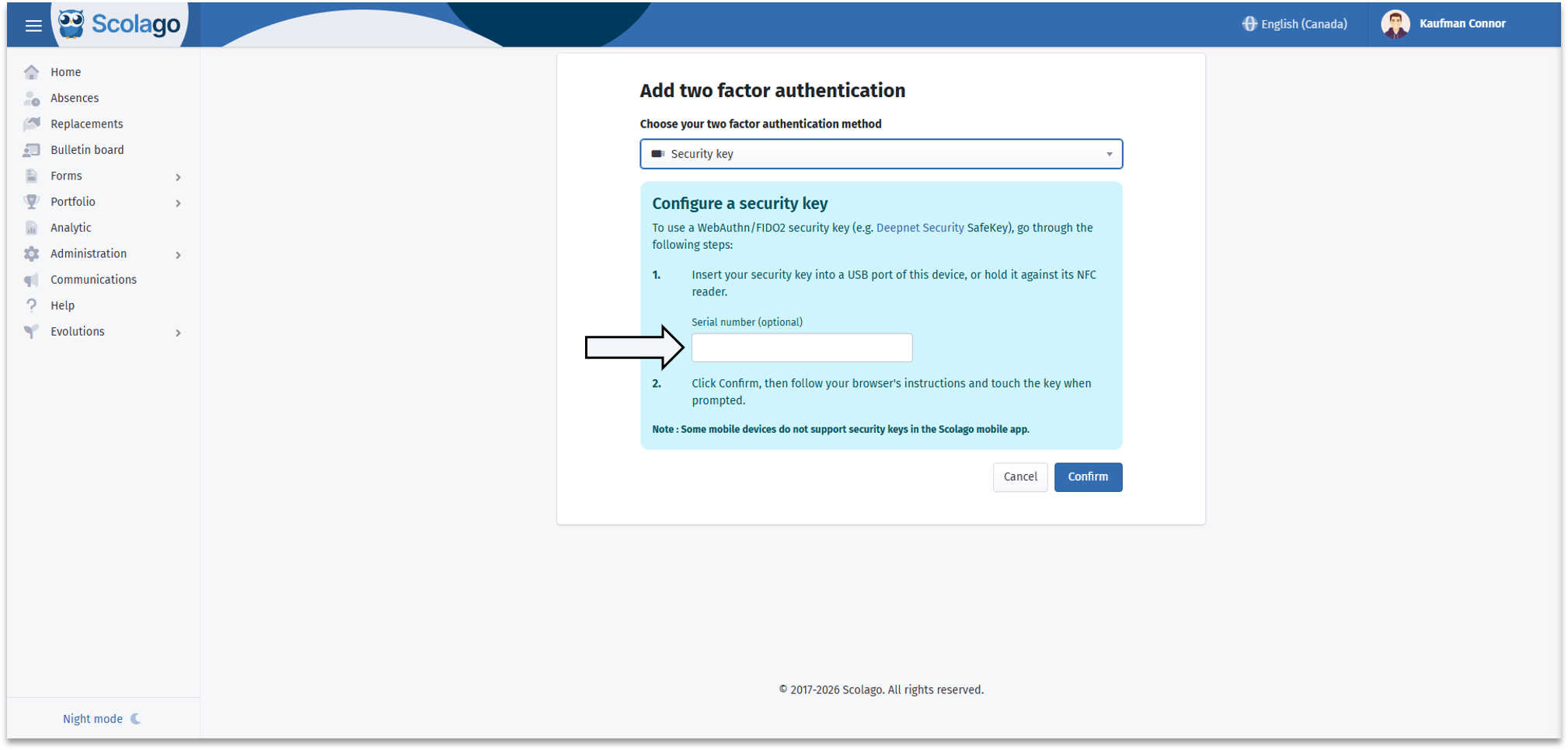
If you wish, enter the serial number or any other identifier in the field provided.
This will help you tell your keys apart if you have more than one.

Click Confirm. Your browser will then open a window asking you to use your key.
Insert your security key into a USB port on your device, or hold it near your device's NFC reader, then follow the on-screen instructions.
Depending on your key, you may be asked to enter its PIN, press its button, or touch it.

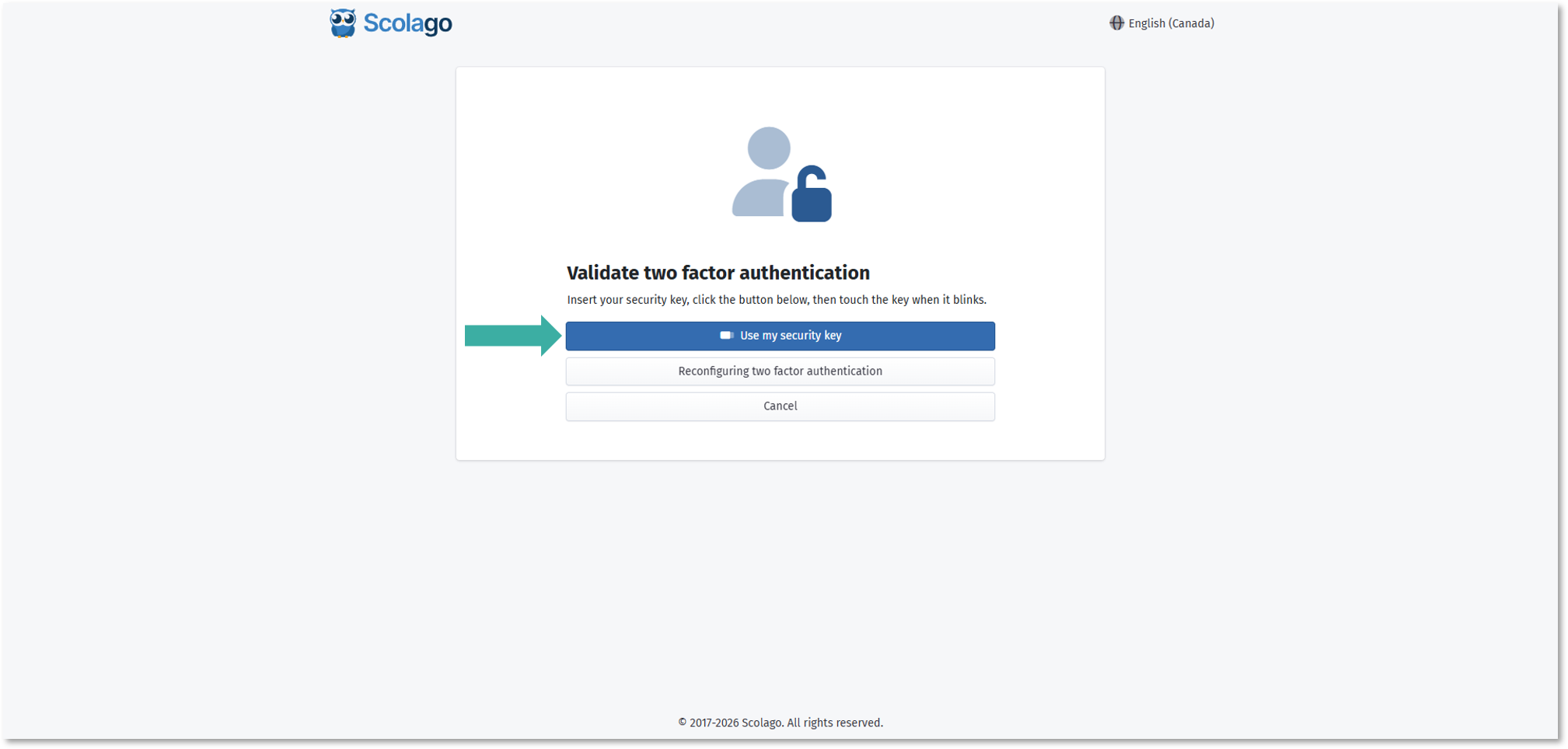
Your two-factor authentication is now enabled. Each time you log in, click the Use my security key button and follow the on-screen instructions, which are the same as in the previous step.
 | Keep your security key with you, for example on your key ring. Without it, you won't be able to log in to your Scolago account. |
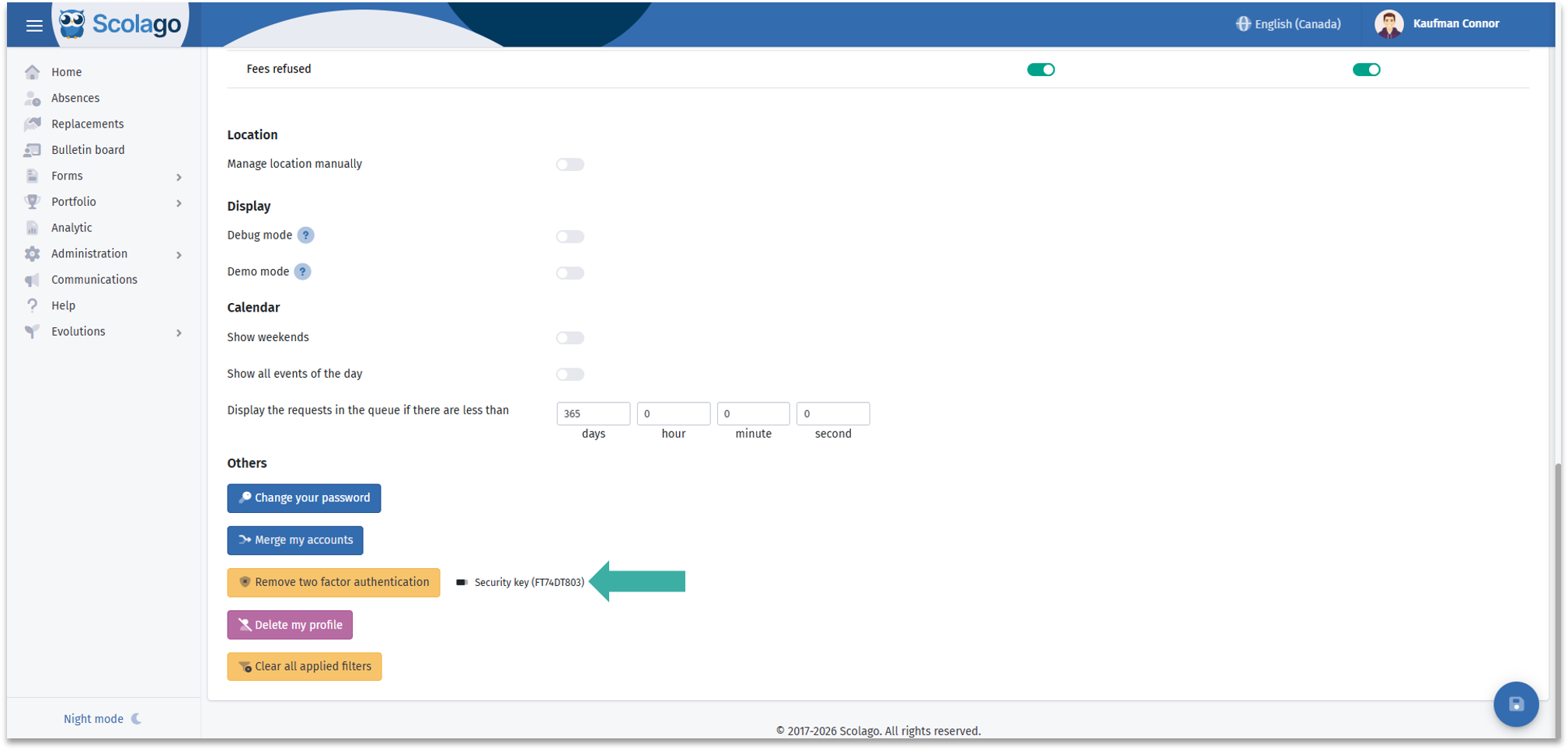
If you want to remove two-factor authentication, go to the Settings tab of your profile. Then, click the Remove two factor authentication button at the bottom of the page.
Was this article helpful?
That’s Great!
Thank you for your feedback
Sorry! We couldn't be helpful
Thank you for your feedback
Feedback sent
We appreciate your effort and will try to fix the article