Whether you are using the mobile app on your smartphone or a tablet, you have the option to stay logged in. This makes the app easier to use and ensures you receive instant notifications.
If you are unable to stay logged in—meaning you have to sign in every time you reopen the app—here are three steps to check:

Make sure your mobile device is supported.
In fact, if your phone or your tablet is no longer technologically up to date, you may experience difficulties using the app.

To perform this check, please refer to this article: All - What are the supported mobile phones and browsers by Scolago?.

When logging in with your email and password, make sure the Stay signed in in box is checked.
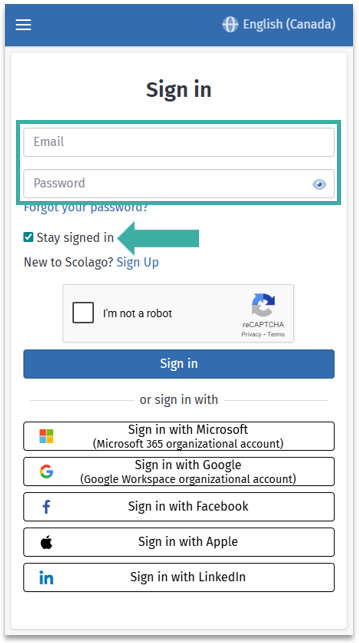
If you are using SSO login instead, here is the procedure to ensure you allow the app to keep your session active:
First, click the Sign in with Microsoft button. On the new page, click the three dots to the right of your account, then select Sign out.
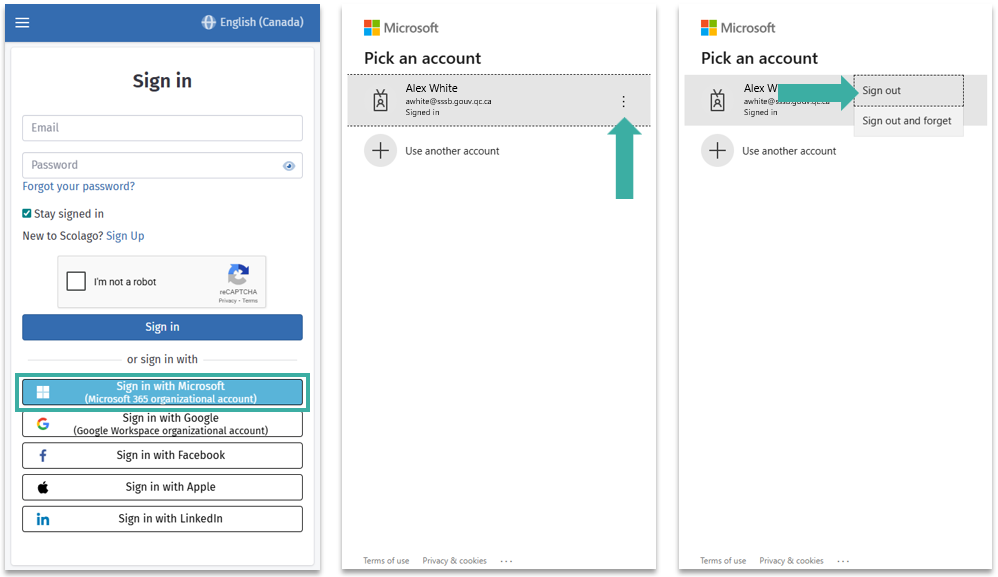
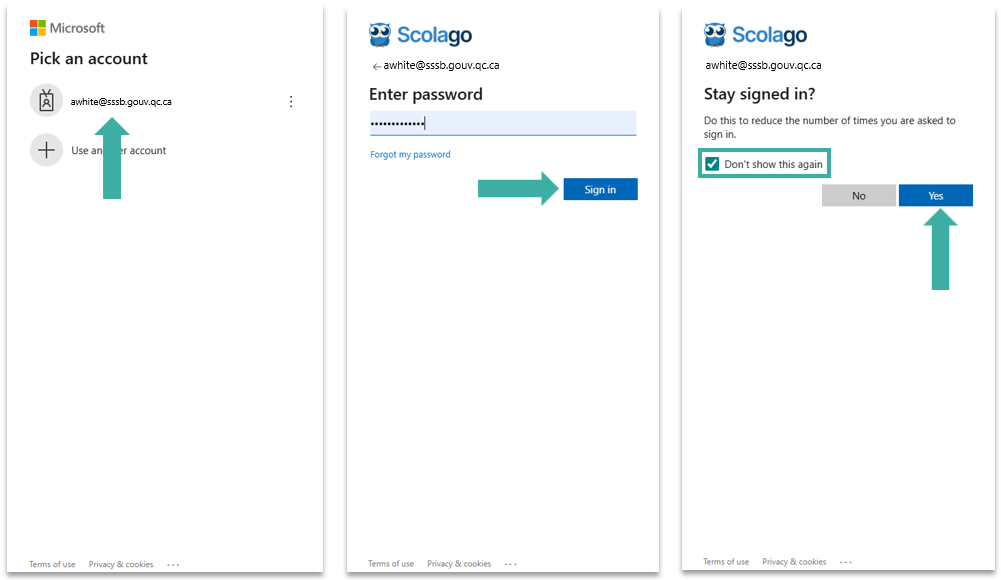
Click on your account again to reconfigure your connection. Enter your password and click Sign in. On the Stay signed in? page, check the Don't show this again again box and click the Yes button.

Finally, you must ensure that cookies are enabled on your mobile device.
The procedure to enable them varies depending on the brand of your phone or tablet. Please select the link that is relevant to you:

If you have completed these steps and are still unable to stay logged in, a security setting configured by your organization in Office 365 may be causing you to be logged out after a certain period.
To check if this policy is in place for your organization, please contact your administrator using the contact details provided in the platform's Help module.
If this is not the case, please contact our support team at support@scolago.com.
Was this article helpful?
That’s Great!
Thank you for your feedback
Sorry! We couldn't be helpful
Thank you for your feedback
Feedback sent
We appreciate your effort and will try to fix the article