If you have forgotten your password or simply wish to change it, the process is very simple.
Please note, however, if you use a synchronized login (SSO):
- With a public account (Microsoft, Google, Facebook...): The change must be made directly on the respective platform's website.
- With your organizational email: You must contact your organization's administrator. You can easily find their contact information in the Help module of the platform.
Here is how to change your password if you do not use an SSO login:

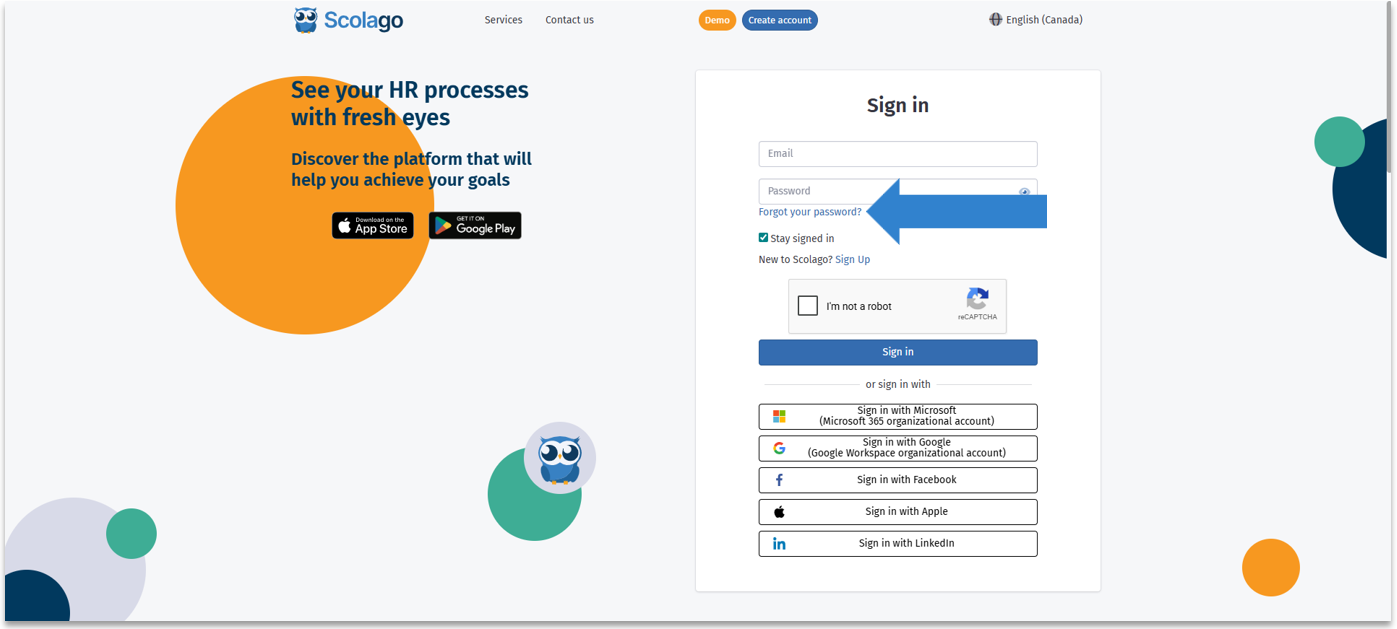

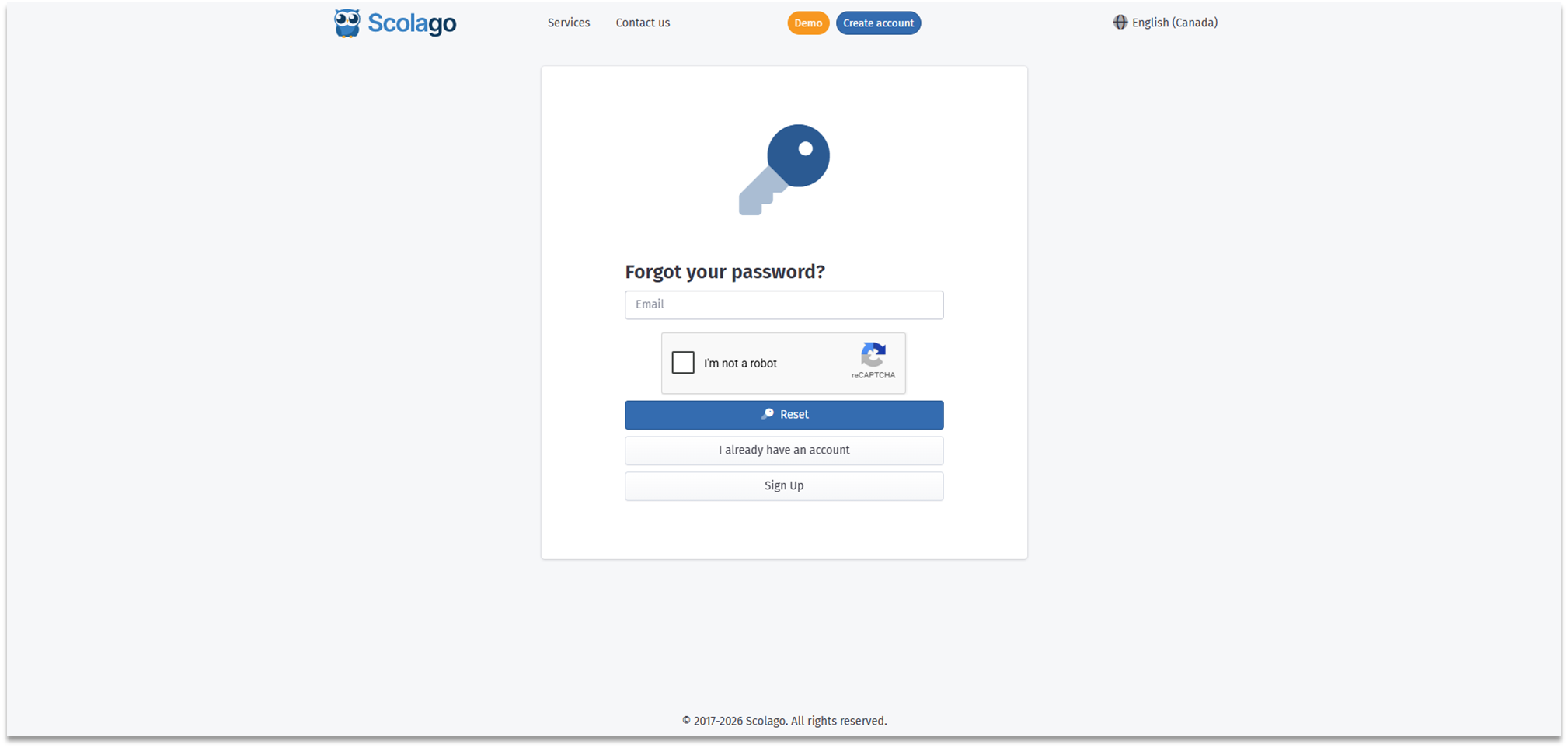
Enter the email address associated with your Scolago account, check the I am not a robot box, and click Reset.

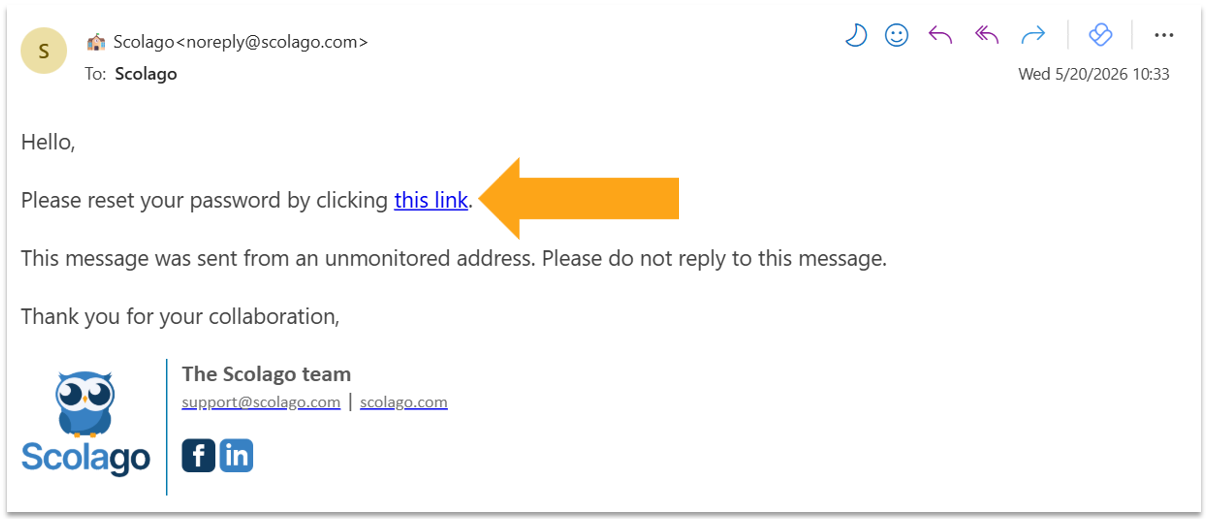
You will receive a password reset email. Click on the link.

If you believe you have not received the email, we invite you to check your junk mail. For more details, please look into this article: All - How to add Scolago as a trusted sender in your email inbox?.

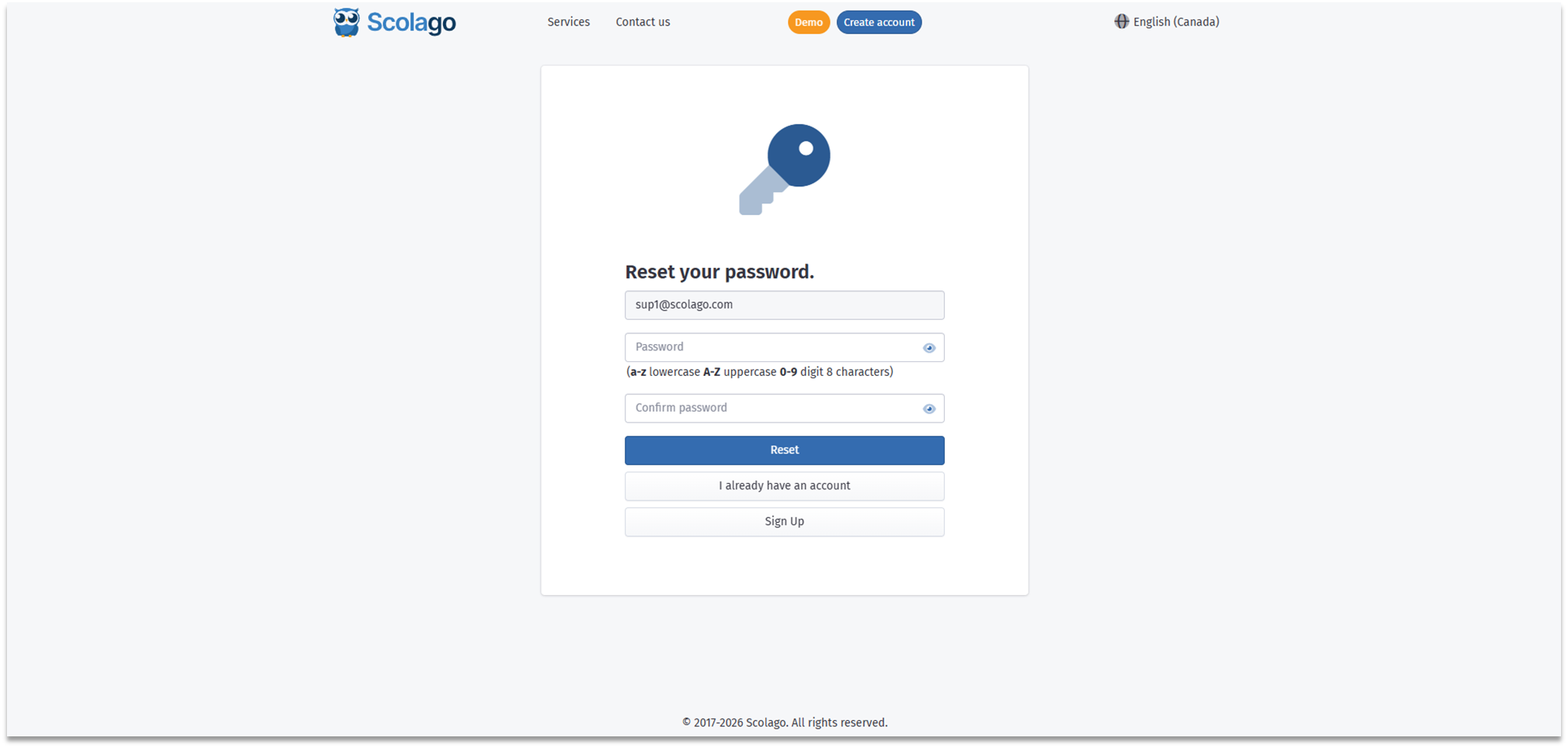
You will be redirected to the password change page.
Enter your new password, ensuring it meets the following criteria:
- a-z lowercase: Contain at least one lowercase character;
- A-Z uppercase: Contain at least one uppercase character;
- 0-9 digit: Contain at least one digit;
- 8 characters: Contain at least eight characters.
Then, click on Reset.

You will be automatically redirected to the login page.
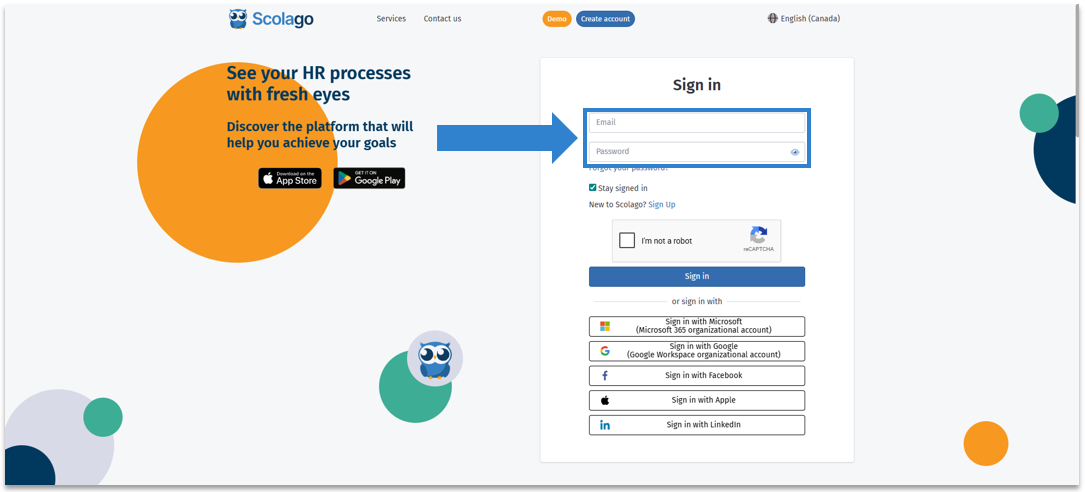
Log in using your new password.

Was this article helpful?
That’s Great!
Thank you for your feedback
Sorry! We couldn't be helpful
Thank you for your feedback
Feedback sent
We appreciate your effort and will try to fix the article