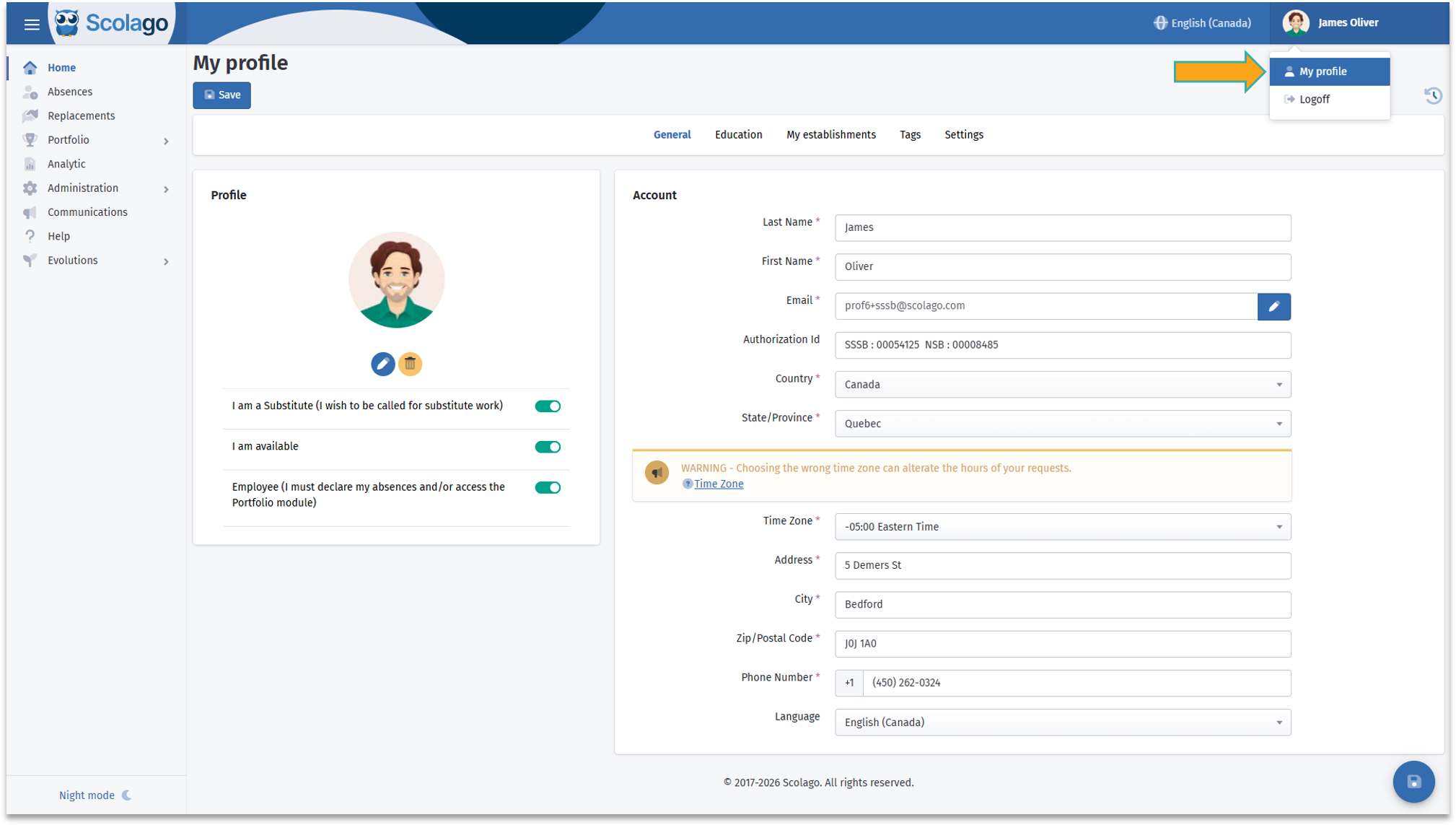
The General tab contains the basic information of your Scolago account: your photo, your roles and your contact information. It is the tab that opens automatically when you access your profile.
To access it, click your name in the upper right corner of the page, then click My profile. The tab is divided into two sections: Profile, on the left, and Account, on the right.
 | The clock icon, in the upper right corner, displays the history of changes made to the profile. |

First, you can add, change or delete your photo using the buttons below the image. Note that when a new profile is created, it must be saved once before the photo can be set up.
Below your photo, two toggles allow you to choose your role or roles in Scolago. You can enable either one, or both.
 | For full details on these toggles and their effects, see the following article: All - How to add the ''Employee'' or ''Substitute'' role to my profile? |

Cette section contient vos coordonnées : notez que les champs marqués d'un astérisque sont obligatoires.
| Field | Description | ||
|---|---|---|---|
| Last Name and Last Name | Enter your last name and first name. | ||
| Email | This field shows the email address you use to log in and receive notifications.
| ||
| Authorization Id | Enter your employee number within your organization. If you have more than one, you can enter them all. | ||
| Country and State/Province | Select your country of residence. It determines the options available in the State/Province and Time Zone fields, as well as the country code for your phone number. Then select your state or province. | ||
| Time Zone | The time zone used to display the times of your requests. Note that choosing the wrong time zone may shift the times of your absence or replacement requests. Be sure to select standard time, that is, the winter time zone, as shown below.
| ||
| Address, City and Zip/Postal Code | Enter your full home address. This information is especially important if your organization uses the Expense Reimbursements module, so be sure to update it whenever it changes. | ||
| Phone Number | Enter your phone number. The country code is added automatically. | ||
| Language | Select the language in which you want to receive communications from Scolago and generate your reports. |
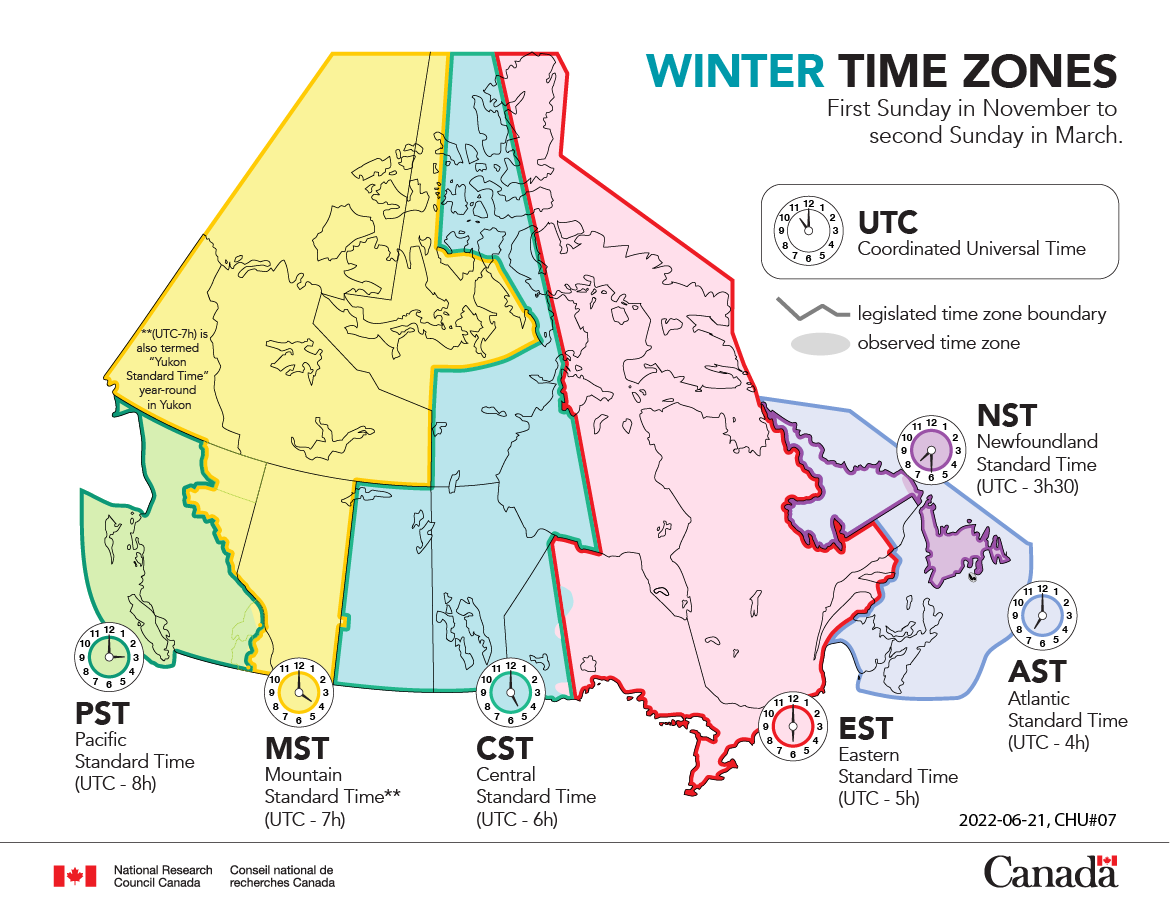 Photo source:

Once you have finished making your changes, click the Save button in the upper left corner or the floppy disk icon in the lower right corner of the page. If you try to leave the page without saving, an alert will ask whether you want to continue without saving.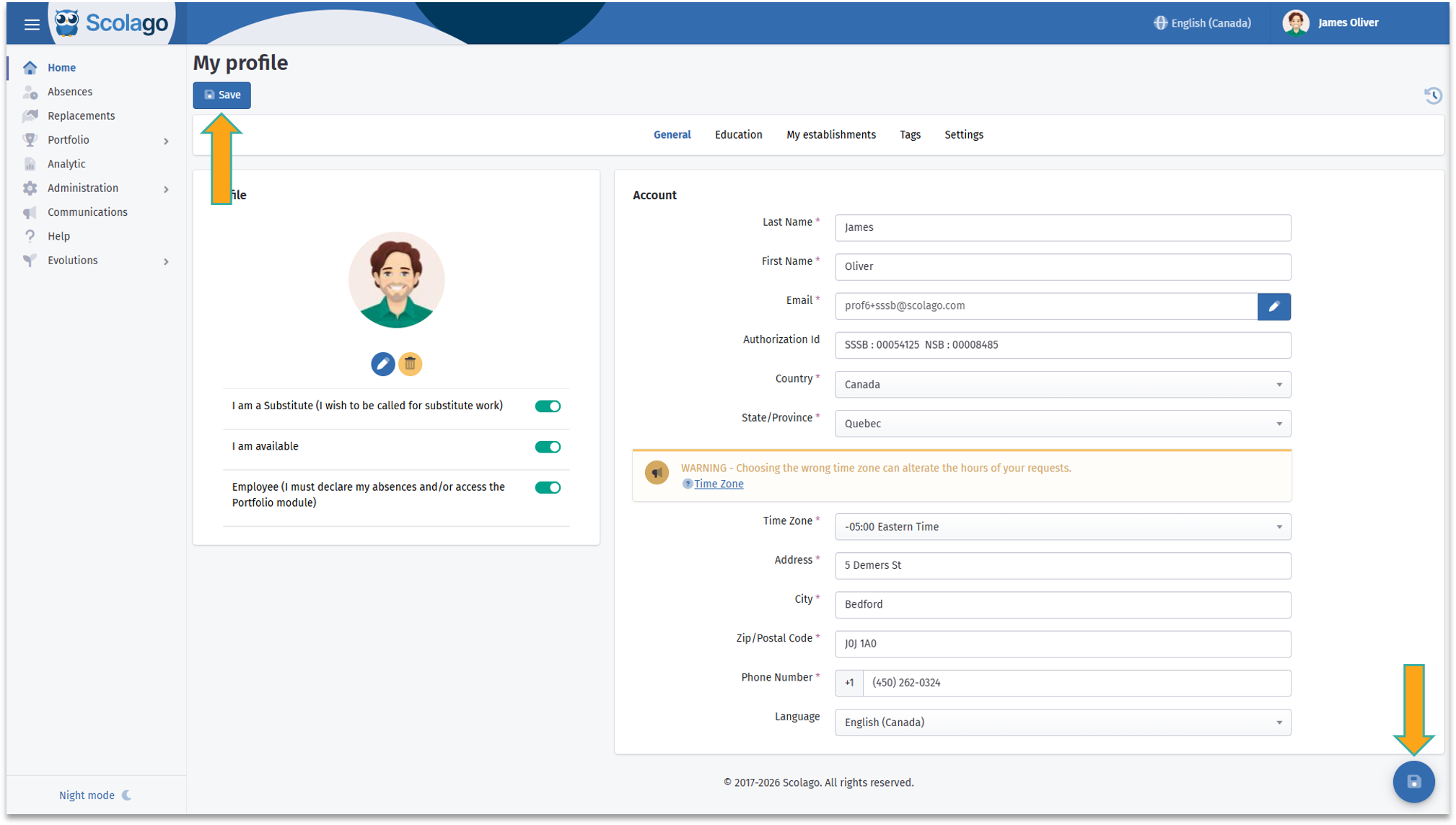
 | If you have changed your roles or information that matters for your application, remember to notify your administrator. See the following article to learn how: Substitute - How to notify my administrator that I have made changes to my profile?. |
Was this article helpful?
That’s Great!
Thank you for your feedback
Sorry! We couldn't be helpful
Thank you for your feedback
Feedback sent
We appreciate your effort and will try to fix the article