Proper management of professional evaluations is essential to ensure effective tracking of the skills required for your role. First, you need to be added to an evaluation: your manager can do this for you, but you can also add yourself.

If needed, consult this article to see how: How do you add yourself to evaluations in the ''Directory''?
Once the evaluation is ready to begin, follow these steps:

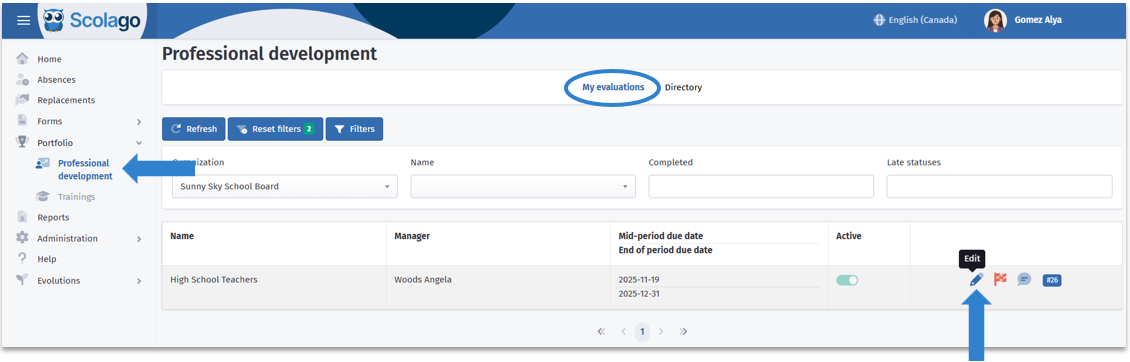
Go to the Professional Development module under the Portfolio tab in the left-hand menu. You will be automatically directed to the My Evaluations section.
Locate the evaluation to complete and click the pencil icon to edit it.

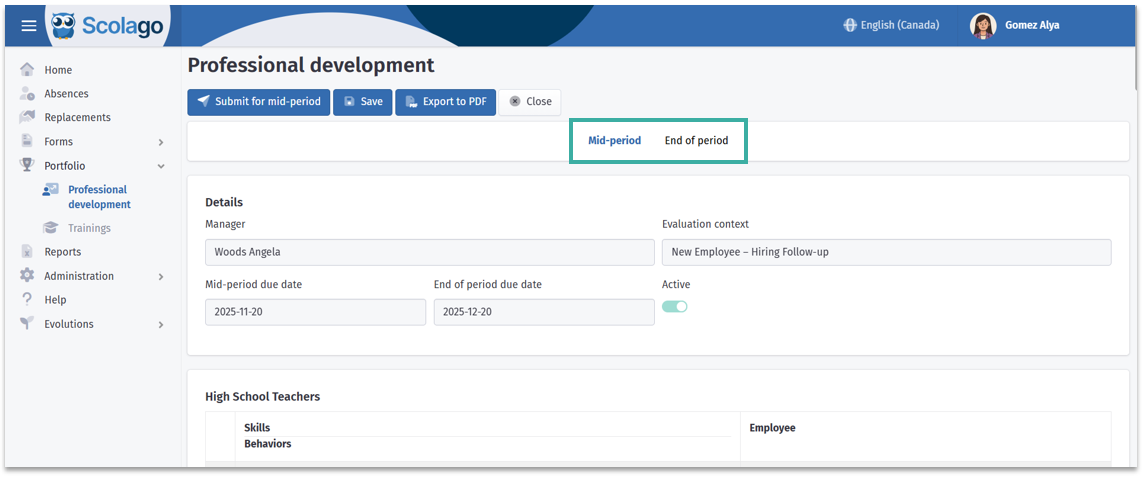
This new page represents your full evaluation.
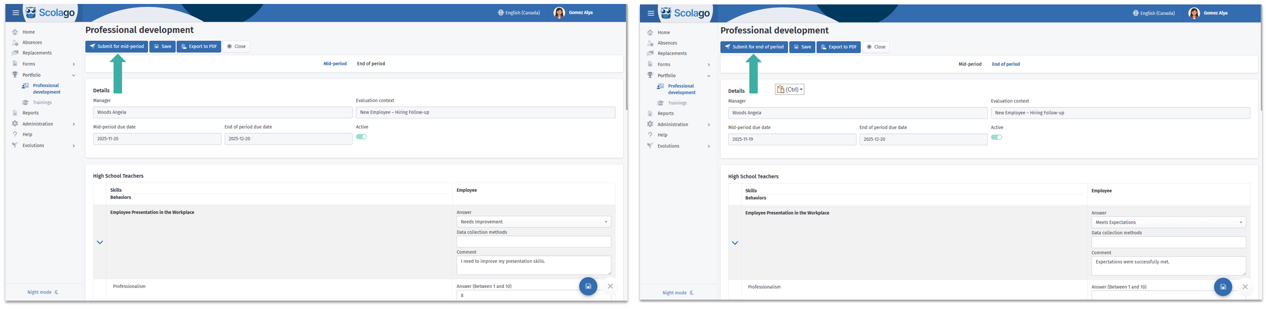
If this evaluation has a mid-period deadline, the two evaluations will be separated. You can switch between the mid-period and end-of-period evaluations using the tabs at the top of the page.

Caution, The end-of-period evaluation will only be available starting the day after the mid-period evaluation deadline to avoid completing both simultaneously.
If the evaluation only has an end-of-period deadline, these tabs will not be displayed. 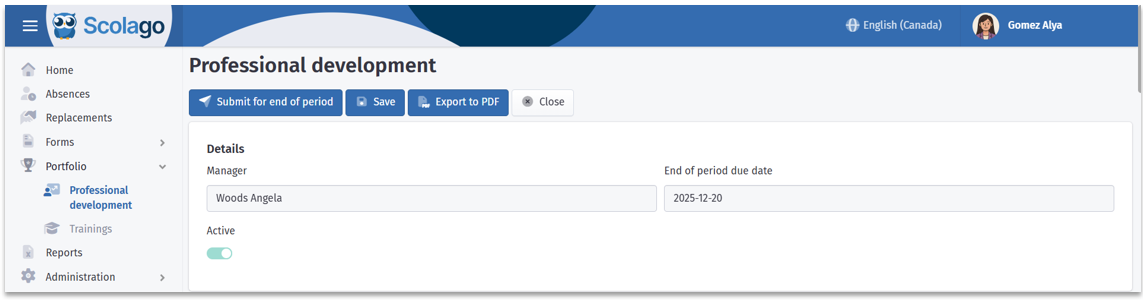
A little further down, you will find the evaluation details, including:
- The Manager responsible for this evaluation
- The Evaluation context, if applicable
- The Mid-period deadline, if applicable
- The End-of-period deadline
- The Active toggle, indicating whether the evaluation is in progress.

In the section below, named after the evaluation, you will see all the Skills (collapsible gray rows) and Behaviors (white rows) to be evaluated for your role.
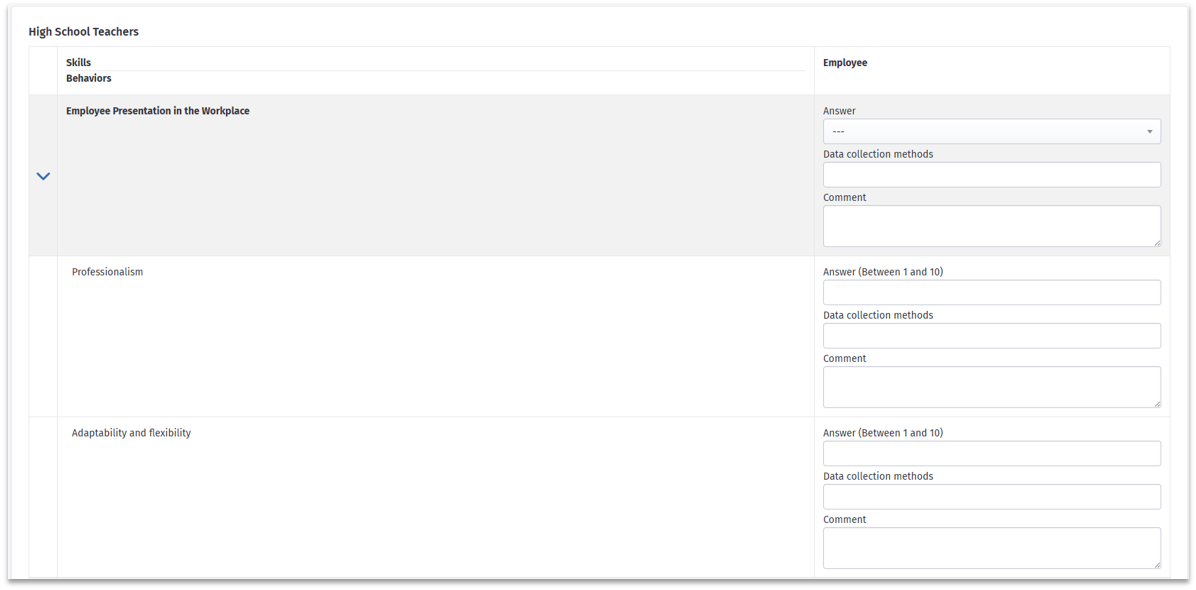
In the Employee column, enter all your Responses. If applicable, indicate the Data collection methods for your responses; this field is optional. Finally, enter details in the Comments boxes if needed.
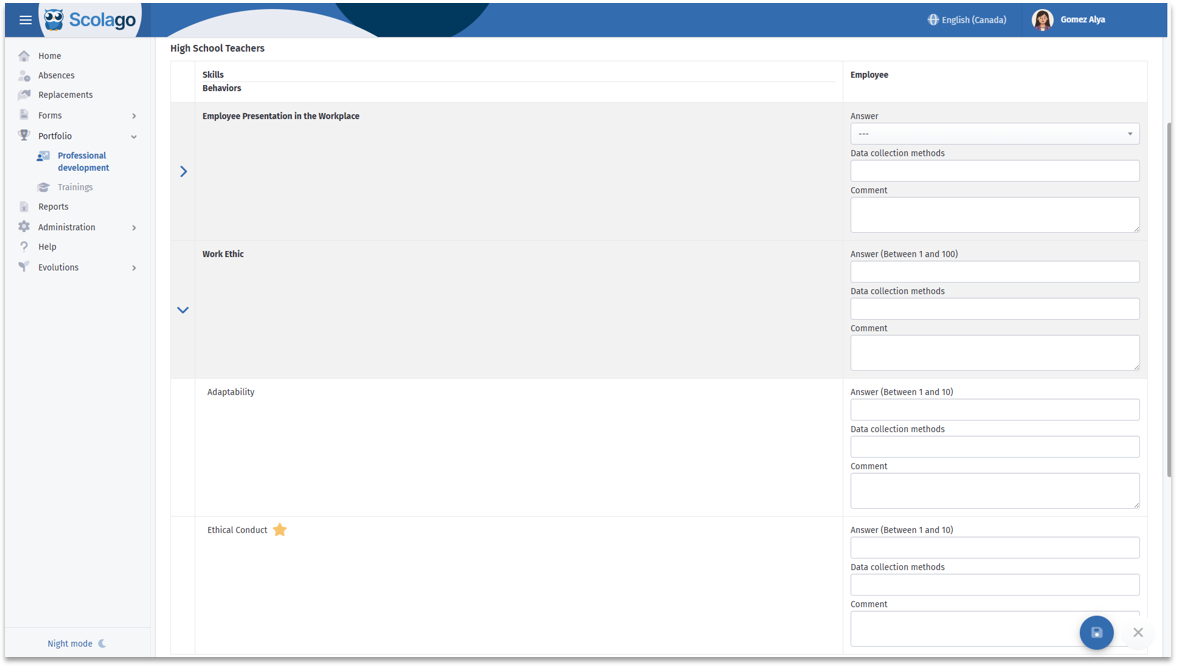
 | A behavior with this icon has been highlighted by your organization: this star represents the essential behaviors for the success of your evaluation. |

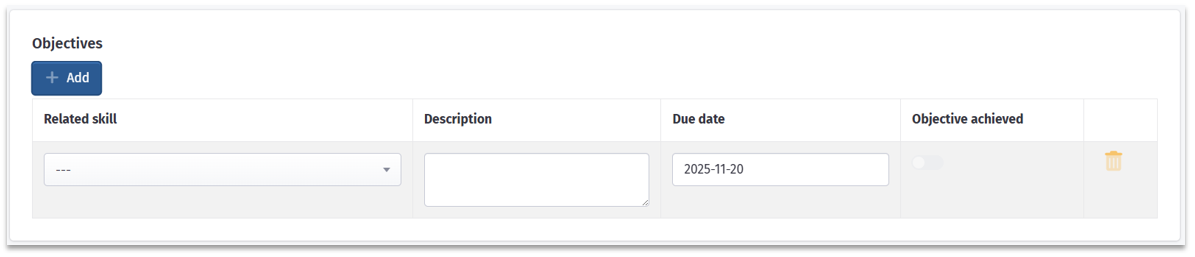
Further down, you will find the Objectives section, which is optional. This section is also visible and editable by the manager.
To add an objective, click Add.

In the fields that appear in the table, indicate the related Skill. Then, enter a clear description of the objective to be achieved. The default deadline will be the mid-period or end-of-period date of the current evaluation, which you can change if needed. Activate the Objective Achieved toggle when applicable. Finally, use the trash icon to delete the objective if necessary.

At the bottom of the evaluation, there is a Comments section.

Enter any details about this evaluation if desired. The manager will be able to see your comment in your evaluation.

Once all your evaluation data has been entered, you have several options:
For both mid-period and end-of-period evaluations, you can click the Save button in the upper-left corner or the disk icon in the lower-right corner. This will save all data as a draft, and you will need to return later to complete the process. 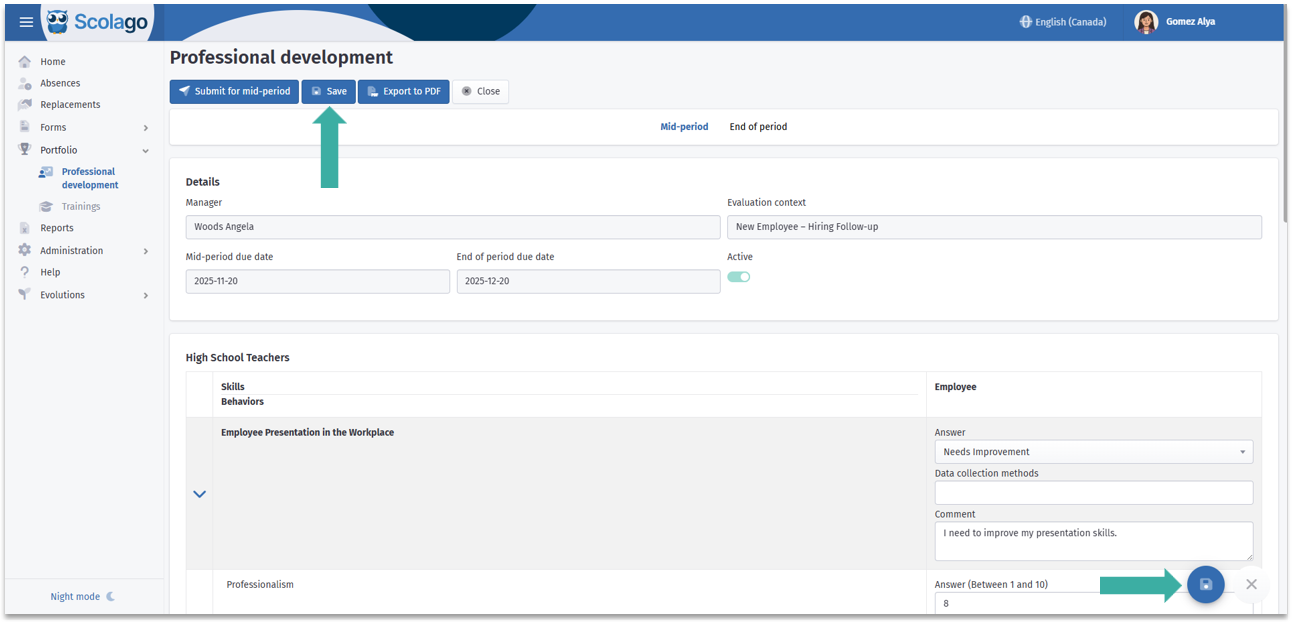
If you are ready to submit your evaluation, you can do so by clicking Submit for Mid-Period or Submit for End-of-Period, as applicable. Once submitted, the information entered for Behaviors and skills can no longer be modified.
You will also be able to see the manager’s responses in a new column added to the left of yours.

Once both parties have submitted the end-of-period evaluation, it’s time to finalize the process. As soon as your manager has submitted their final response, you must review it by clicking Final responses, and confirm that you have acknowledged it by clicking Confirm.
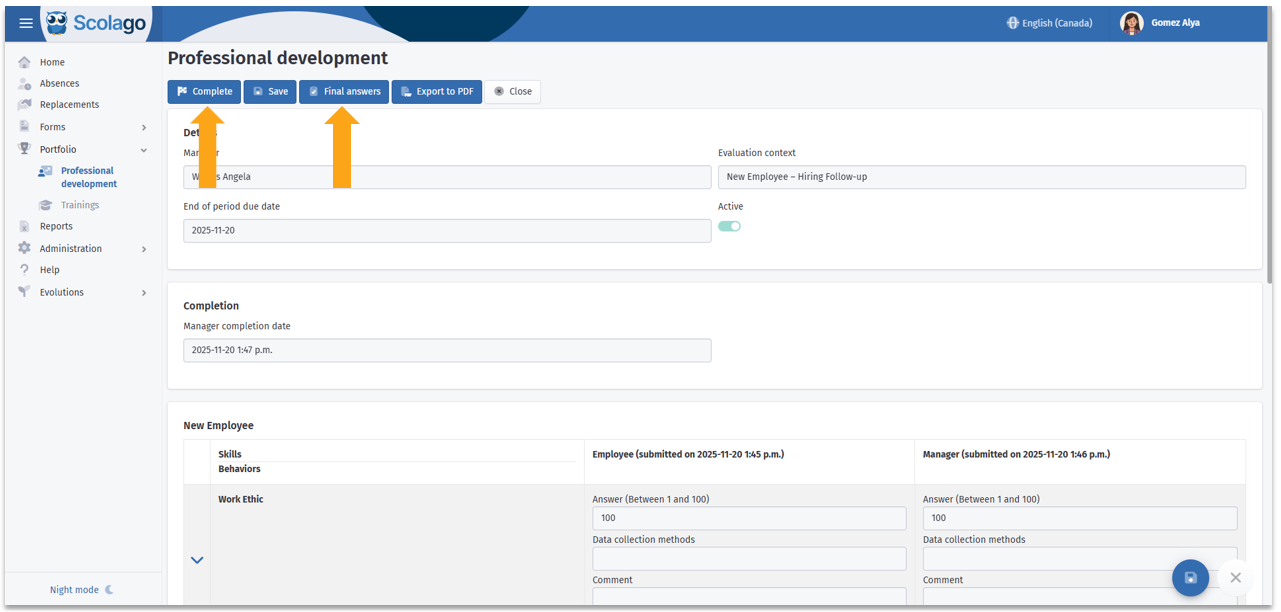
Once completed, the process is finished, and the flag in the My evaluations table will turn green.


To view the full process, click on the following link: Employee - How to complete the professional evaluation?
Was this article helpful?
That’s Great!
Thank you for your feedback
Sorry! We couldn't be helpful
Thank you for your feedback
Feedback sent
We appreciate your effort and will try to fix the article