Scolago now includes a web notification system, accessible directly from the platform. These notifications let you stay informed in real time about important events related to your profile, without having to check your emails or your mobile notifications.
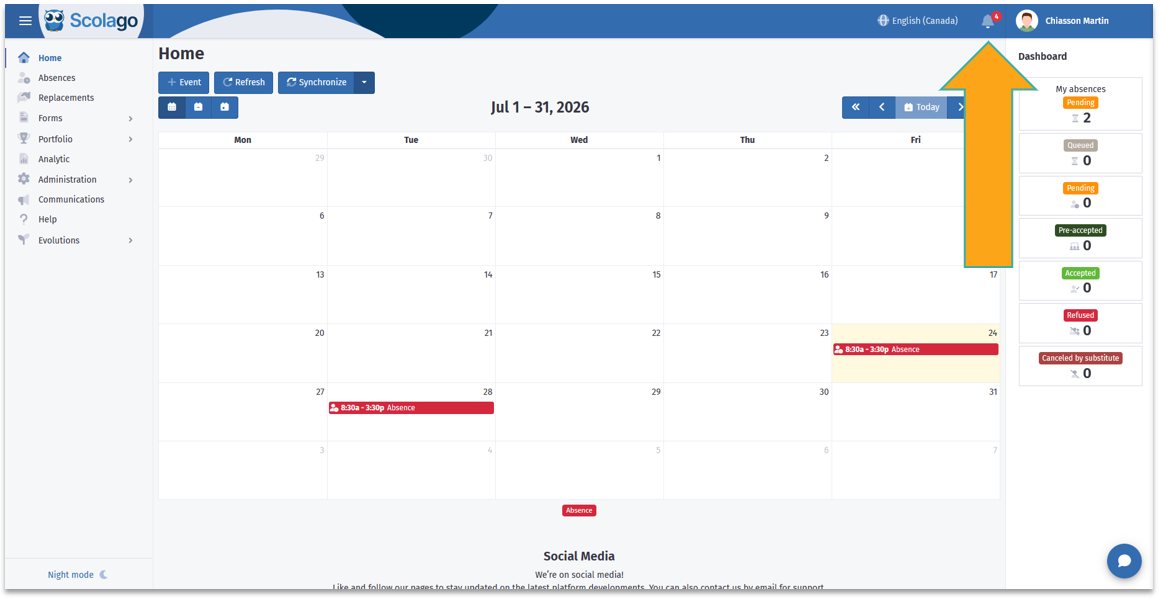
When the Notifications Center is enabled for your profile, a bell icon appears in the upper corner of your screen. This icon gives you quick access to all your recent notifications. Clicking the bell icon opens a side panel displaying the list of notifications you've received.
Clicking on the notification title will redirect you to the page related to the notification.
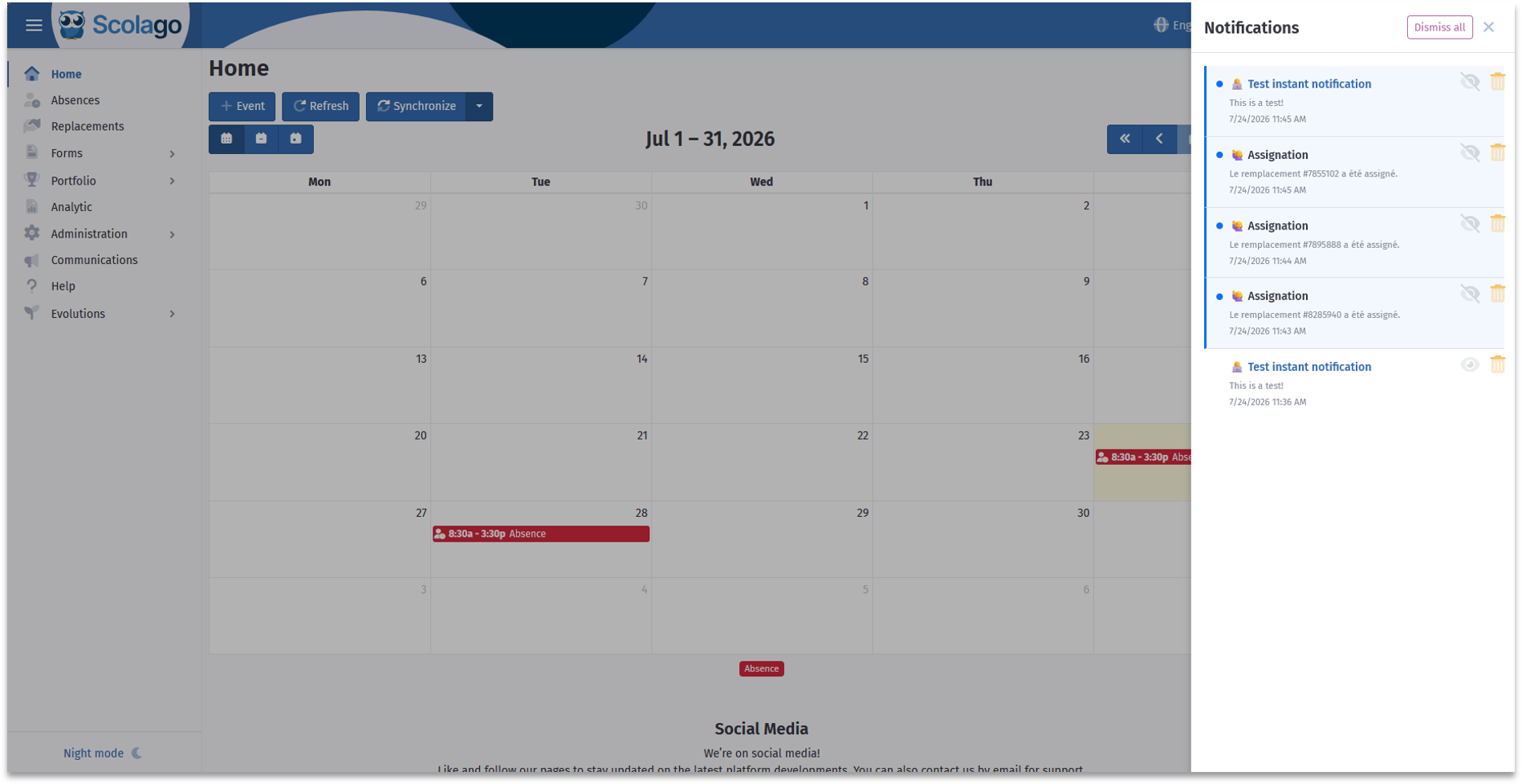
Other buttons allow you to perform additional actions:
 | The eye icon lets you mark the notification as read or unread. |
 | The trashcan icon lets you delete the notification. |
 | By clicking the Dismiss all button twice in a row, you can delete all notifications at once. |
Additionally, notifications appear instantly in the upper left corner as soon as they're received, without needing to refresh the page.
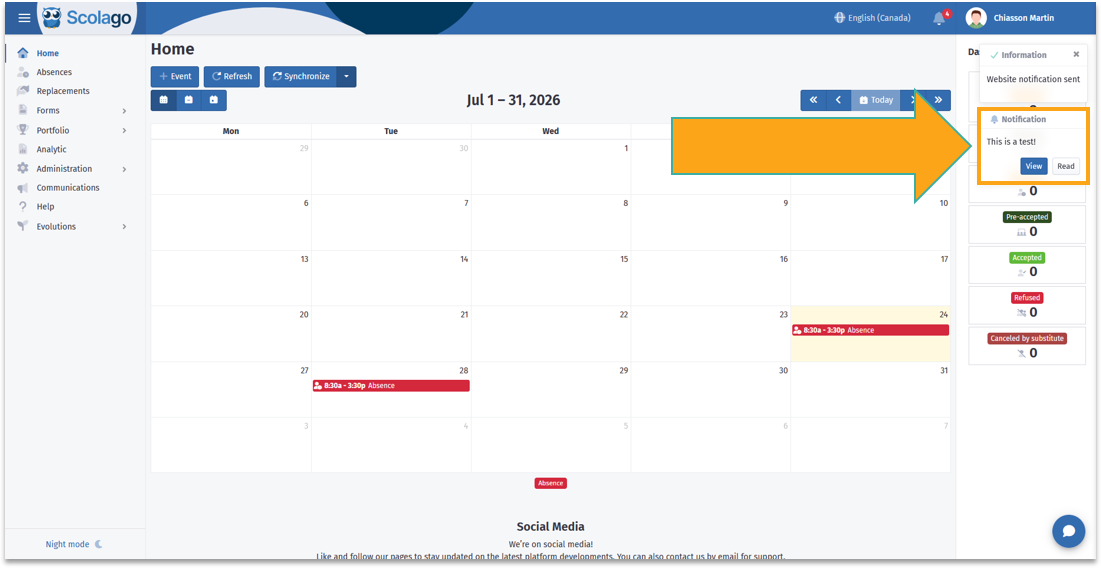
In this window that appears in the upper left corner, two buttons will be available:
 | Access the page related to the notification directly by clicking the See button. |
 | The Read button lets you hide the notification window immediately, without waiting the 15 seconds for it to disappear automatically. |
Each user can choose to enable or disable the Notifications Center from their account.
 | For more information on this topic, see the following article: All - How to manage notifications? |
Was this article helpful?
That’s Great!
Thank you for your feedback
Sorry! We couldn't be helpful
Thank you for your feedback
Feedback sent
We appreciate your effort and will try to fix the article